01
Find your way around
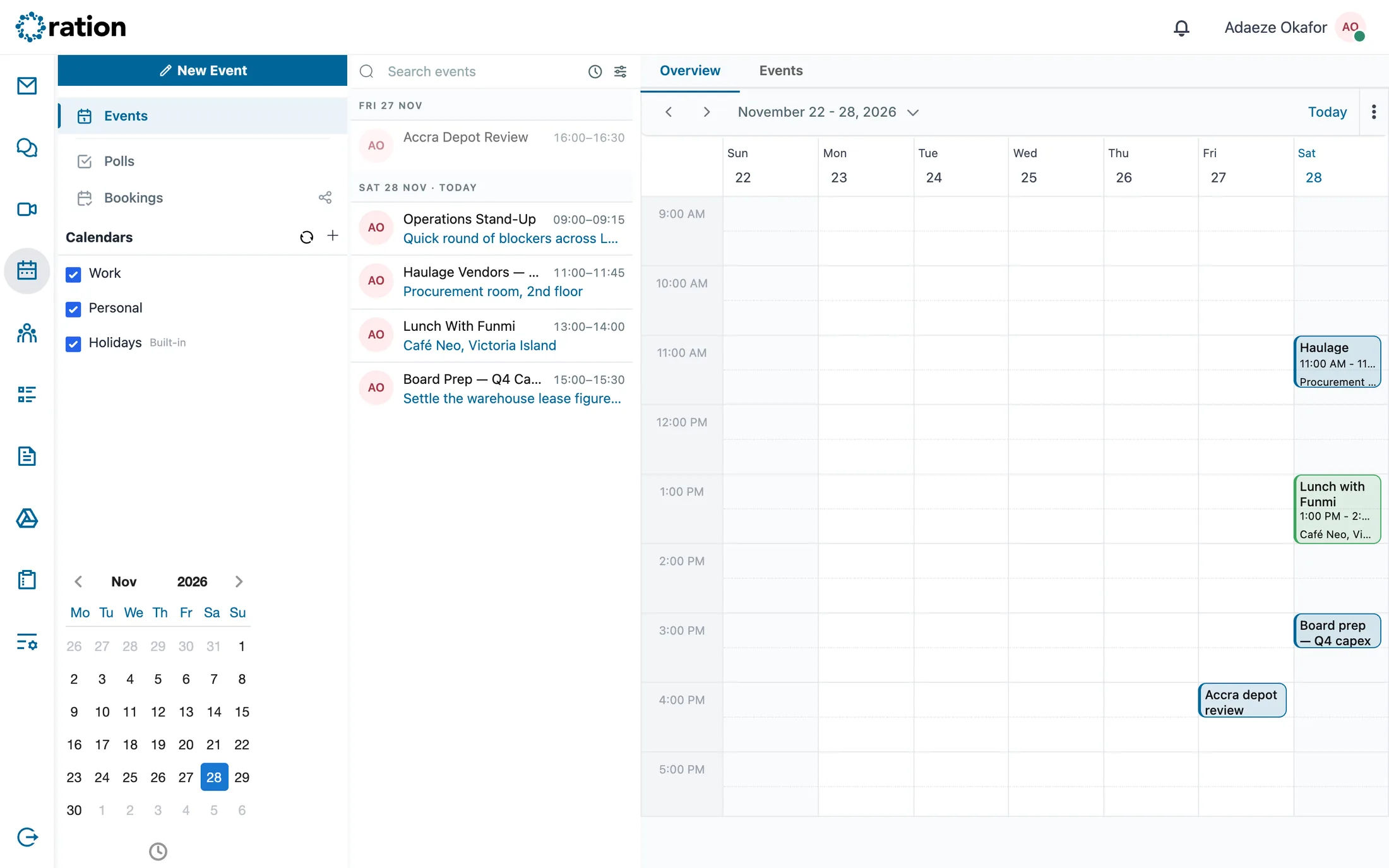
- The navigation rail on the far left moves between Ration apps.
- The Calendar sidebar has New Event, Events, Polls, Bookings, your Calendars and a mini-calendar. Tick or untick a calendar to show or hide its events. Use the mini-calendar arrows to change month, and select a date to jump to it.
- The event list shows events in the selected period, and search results. Select an event to open it.
- The main calendar sits under the tabs. Overview and any events you open stay side by side. Select a tab to go back to it, or its × to close it. Closing a tab doesn’t delete the event.
02
Move between days, weeks and years
Use the arrows to move back and forward. Select the date range to choose another period, or Today to come back to the current date. Change the view to suit what you are doing:
- Day
- An hour-by-hour plan for one date.
- Week
- Comparing a week’s commitments by day and time.
- Month
- Scanning dates and longer-running plans.
- Year
- Moving across a longer period.
03
Create a calendar
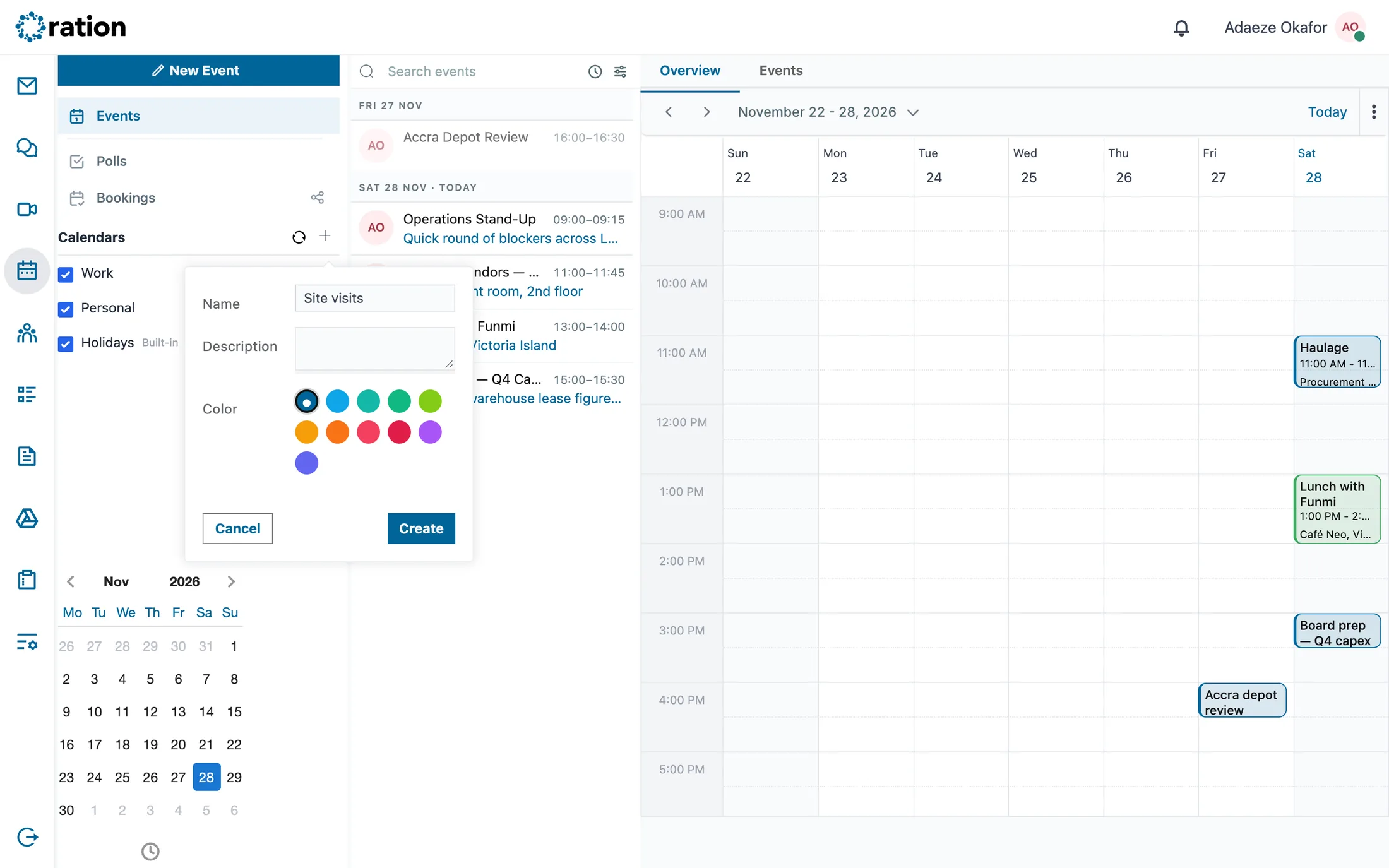
- Select the + beside Calendars.
- Enter a short Name.
- Add a Description if you want to explain what belongs in it.
- Choose a Color. Its events show in that colour.
- Select Create. The calendar appears in the sidebar, ticked so its events show.
Use the refresh button beside Calendars to reload the list.
04
Edit or delete a calendar
Hover over a calendar in the sidebar and select its three dots.
- Edit Calendar opens its name, description, colour and time zone. Change what you need and select Save, or Cancel.
- Delete Calendar asks you to confirm. To keep its events, choose another calendar in Move events to first. Then select Delete, or Cancel to keep the calendar.
If you don’t move the events, they are deleted with the calendar.
05
Start a new event
Select New Event. A New Event tab opens and asks how you want to set it up.
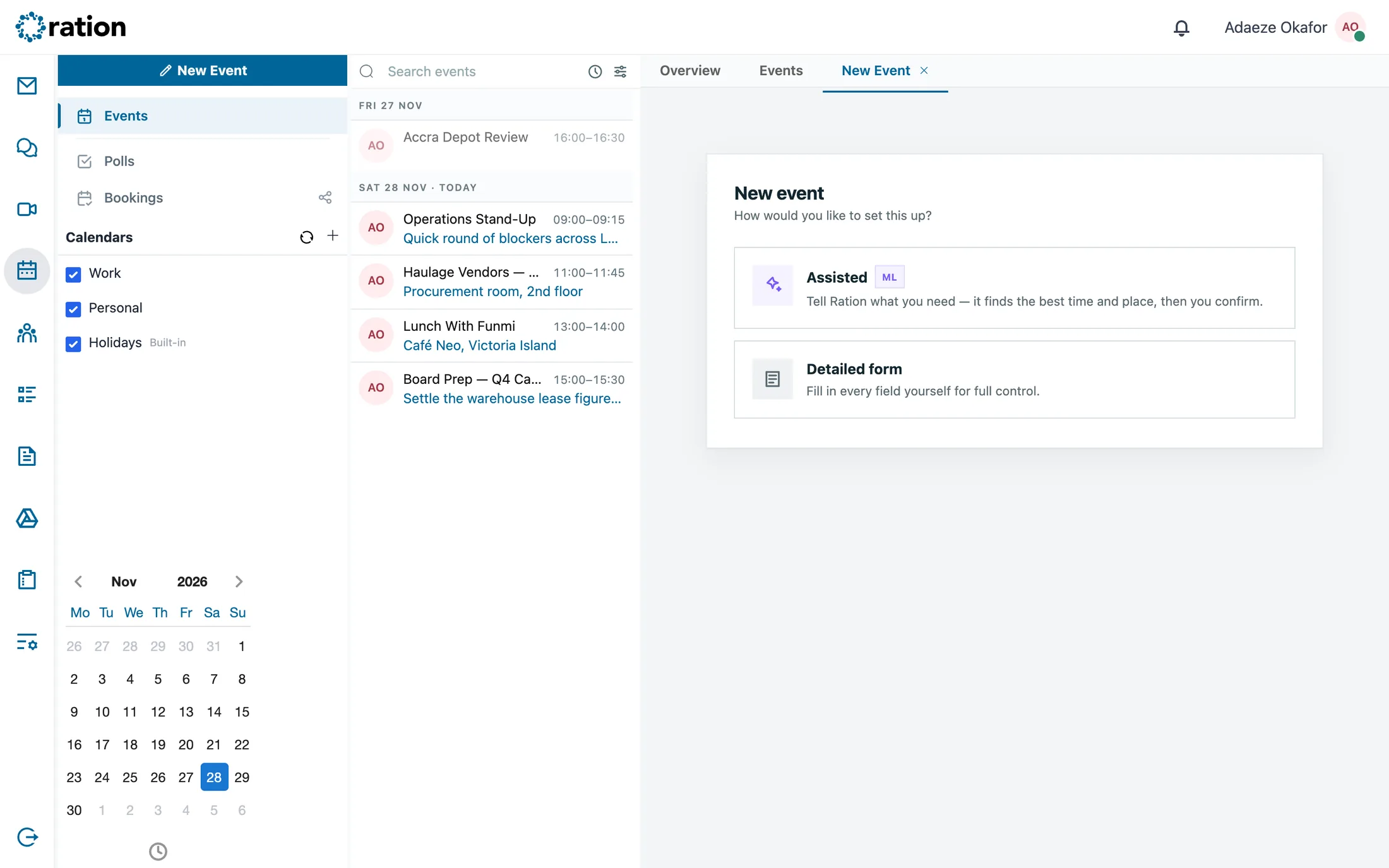
- Assisted: tell Ration what you need. It finds the best time and place, then you confirm. Use it when you need help finding a slot.
- Detailed form: fill in every field yourself. Use it when you need exact control of the time, people, place or repeats.
06
Create an event with the detailed form
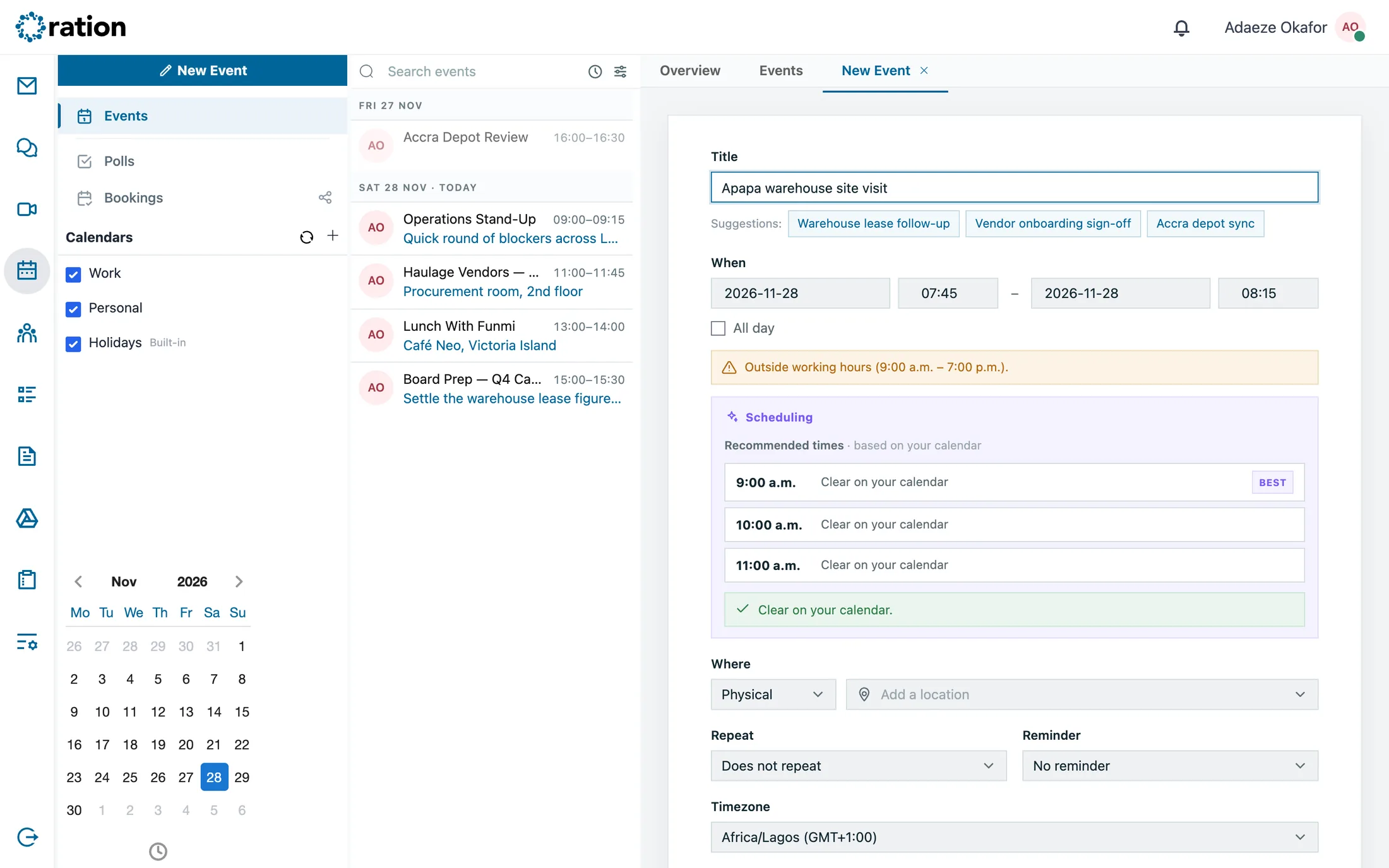
- Enter a clear Title. Ration may suggest titles; pick one only if it fits.
- Under When, set the start and end dates and times, or tick All day. Ration warns you if the event is outside your working hours.
- Check Scheduling. It shows whether the time is clear on your calendar and recommends other times.
- Under Where, choose Physical, Virtual or Generic, and add the location or meeting details.
- Set Repeat: Daily, Weekly, Every Weekday, Bi-Weekly, Monthly or Yearly, or Custom if none of those fits.
- Choose a Reminder, from none to minutes, hours, days or weeks before.
- Check the Timezone, especially when people are in another region.
- Choose the Calendar, add a Category if you like, and add Attendees.
- Add a Description. Suggest agenda can draft an agenda for you; read and edit it before you send the invitation.
- Check the title, date, time zone, attendees and repeat, then select Create event. Select Cancel to drop it.
Creating an event can put it on a shared calendar and send invitations and reminders. Check attendee addresses before you select Create event.
07
Find an event
Use Search events at the top of the event list, and the filter button beside it to narrow a long list. Select a result to open it next to Overview.
For older events, switch to Year and go back with the arrow or the date range. Make sure the calendar is ticked in the sidebar, then open the event from the list or the calendar.
08
Add an event to another calendar
Open an event to see its details and sharing panel. The details include the location, time, time zone, calendar, organiser, attendees and their responses, categories, reminder and description.
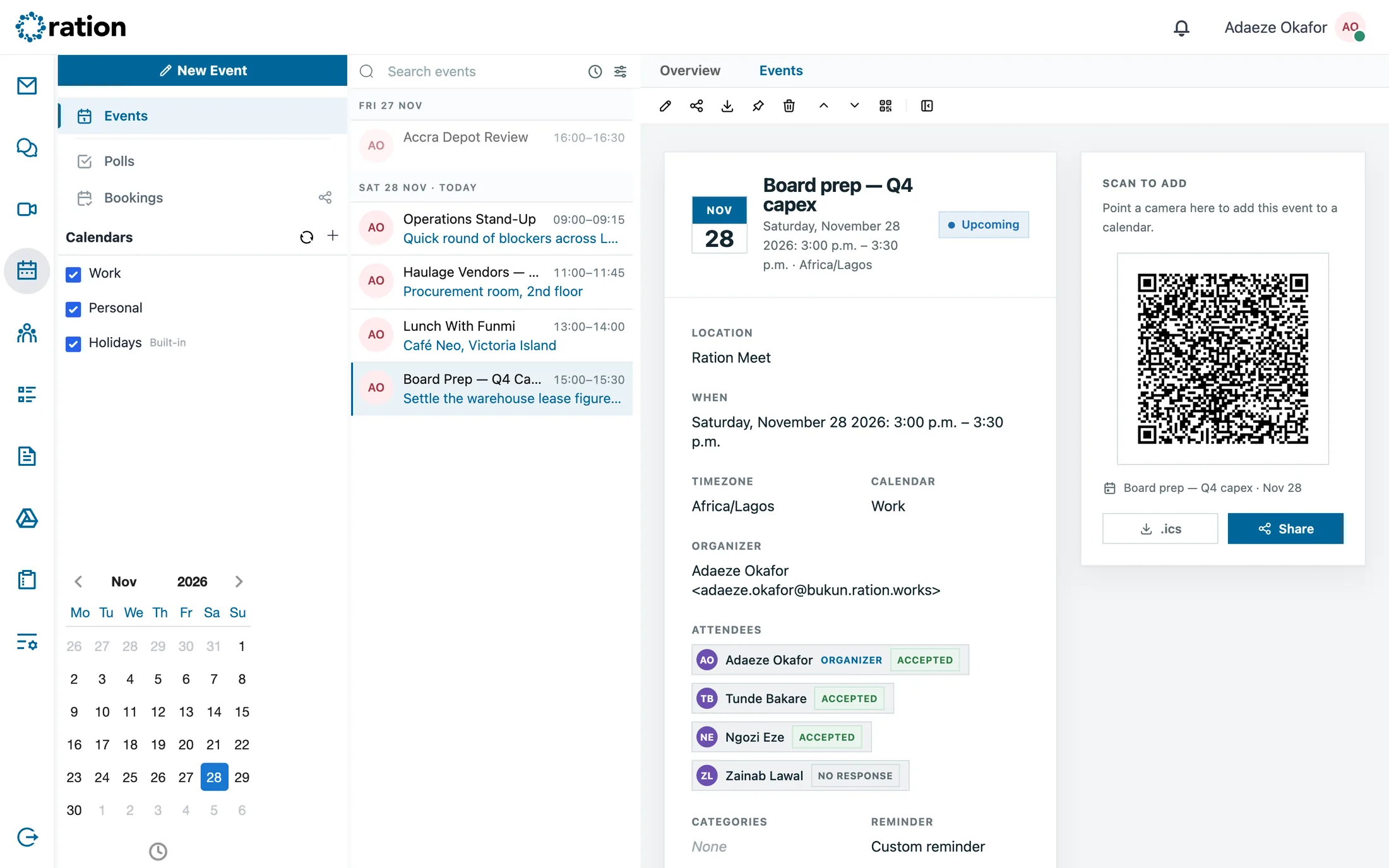
- Scan to add: every event has its own QR code. Point a phone camera at it to add the event to a calendar without typing it in.
- .ics downloads a standard calendar file for the event, to import into another calendar app.
- Share uses your device’s sharing options, or copies the details, so you can send the event on.
The QR code is quickest for handing an event to a phone. Send the .ics file when someone needs it as an attachment. Both are for the single event you opened.
09
The event toolbar
The icons above an open event, from left to right:
- Edit
- Opens the event form. Select Save to keep your changes.
- Share
- Shares the event from your device, or copies the details.
- Download .ics
- Downloads the event as a calendar file.
- Pin
- Keeps the event open in its own tab until you close it.
- Delete
- Deletes the event, after you confirm.
- Previous event / Next event
- Moves through the event list without going back to Overview.
- Show QR
- Shows a larger QR code, with Download .ics and Share.
- Add note
- For past events: creates a linked note for outcomes, minutes or follow-ups.
- Add task
- For past events: creates a linked follow-up task.
- Collapse sidebar / Expand sidebar
- Hides or shows the Calendar sidebar to give the event more room.
Add note and Add task only appear once an event has ended. A pinned event’s tab has no previous and next buttons.
10
Edit or delete an event
Select an event in the calendar or the event list to open it.
- To edit, select Edit, change the title, time, location, repeat, reminder, time zone, attendees or description, then select Save. Select Cancel to leave it as it was.
- To delete, select Delete. Ration warns that this can’t be undone. Select Yes, Delete to remove the event, or Cancel to keep it.
Deleting an event doesn’t delete its calendar.
11
Connect another calendar app with CalDAV
Ration supports CalDAV, so calendar apps that use it can find and sync your Ration calendars. For accounts hosted by Ration, use this discovery address:
https://app.ration.works/.well-known/caldavIf your organisation runs Ration on its own servers or through a managed service provider, use the CalDAV address and sign-in details they give you. Use CalDAV for ongoing sync, and the .ics download when you only need to move one event. To connect a phone, see Phones and mail apps.
Last reviewed 27 November 2026.