01
Find a meeting
Choose a view on the left to change the list:
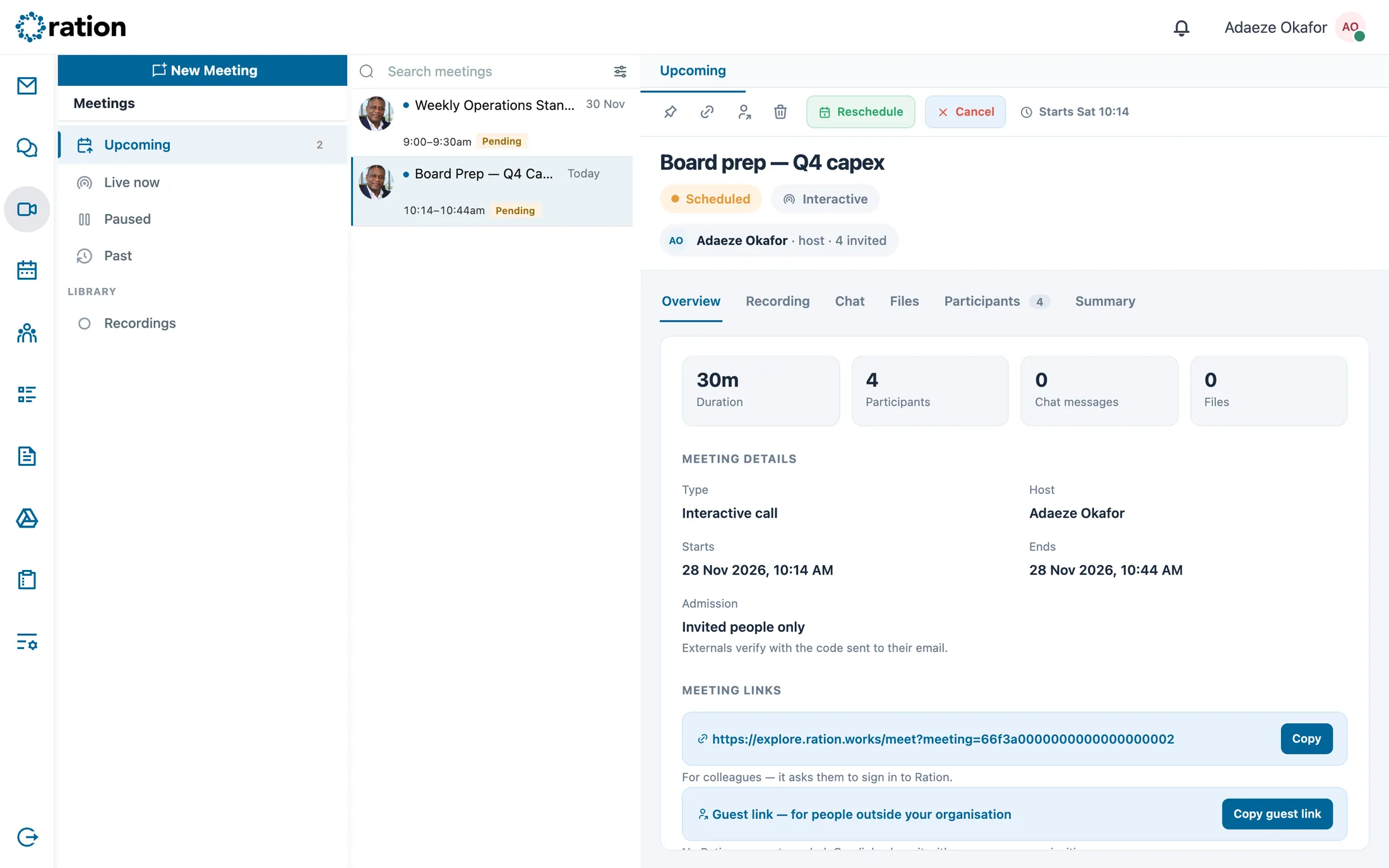
- Upcoming: meetings scheduled ahead.
- Live now: meetings happening now.
- Paused: meetings that have been paused.
- Past: finished meetings, with their outcome and length where available.
- Recordings, under Library: recorded meetings you can access.
Use Search meetings to find a meeting in the current view, and Filter and sort to narrow or reorder the list. Select a meeting to open its details beside the list.
02
New meeting, step 1: when
Select New Meeting. A New meeting tab opens and takes you through three steps.
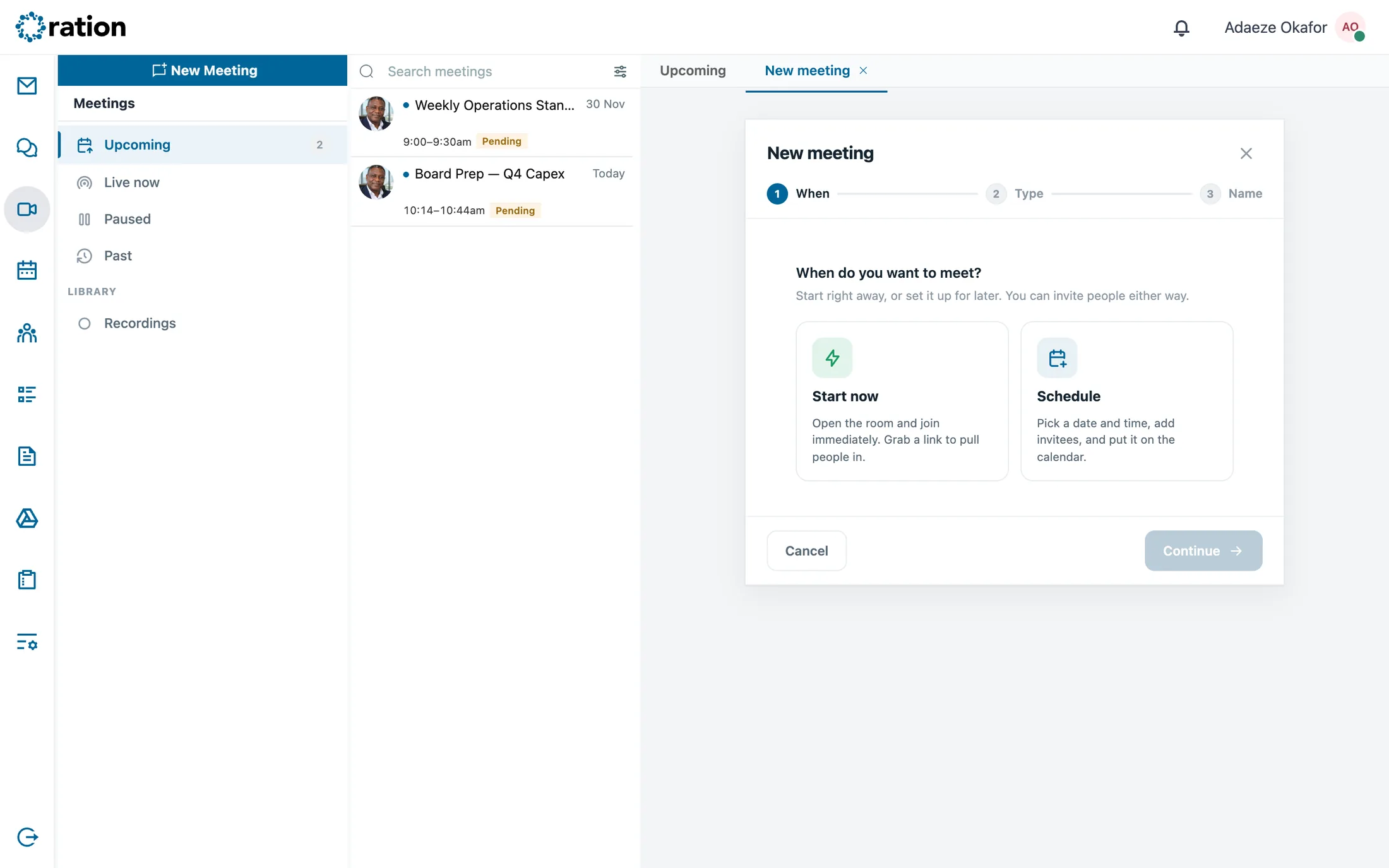
- Start now opens the room and takes you straight in. Use it for a meeting right away. You can grab a link to bring people in.
- Schedule lets you pick a date and time and add invitees, and puts the meeting on the calendar.
Select Continue, or Cancel to drop the draft.
03
Step 2: meeting type
- Interactive
- Working sessions where everyone takes part. Everyone can share audio, video and their screen.
- Livestream
- Presenter-led sessions for a larger audience. Presenters share; the audience watches and can raise a hand to join the stage.
You can’t change the type once the meeting starts. Use Back to change your earlier choice.
04
Step 3: details
For a scheduled meeting, fill in:
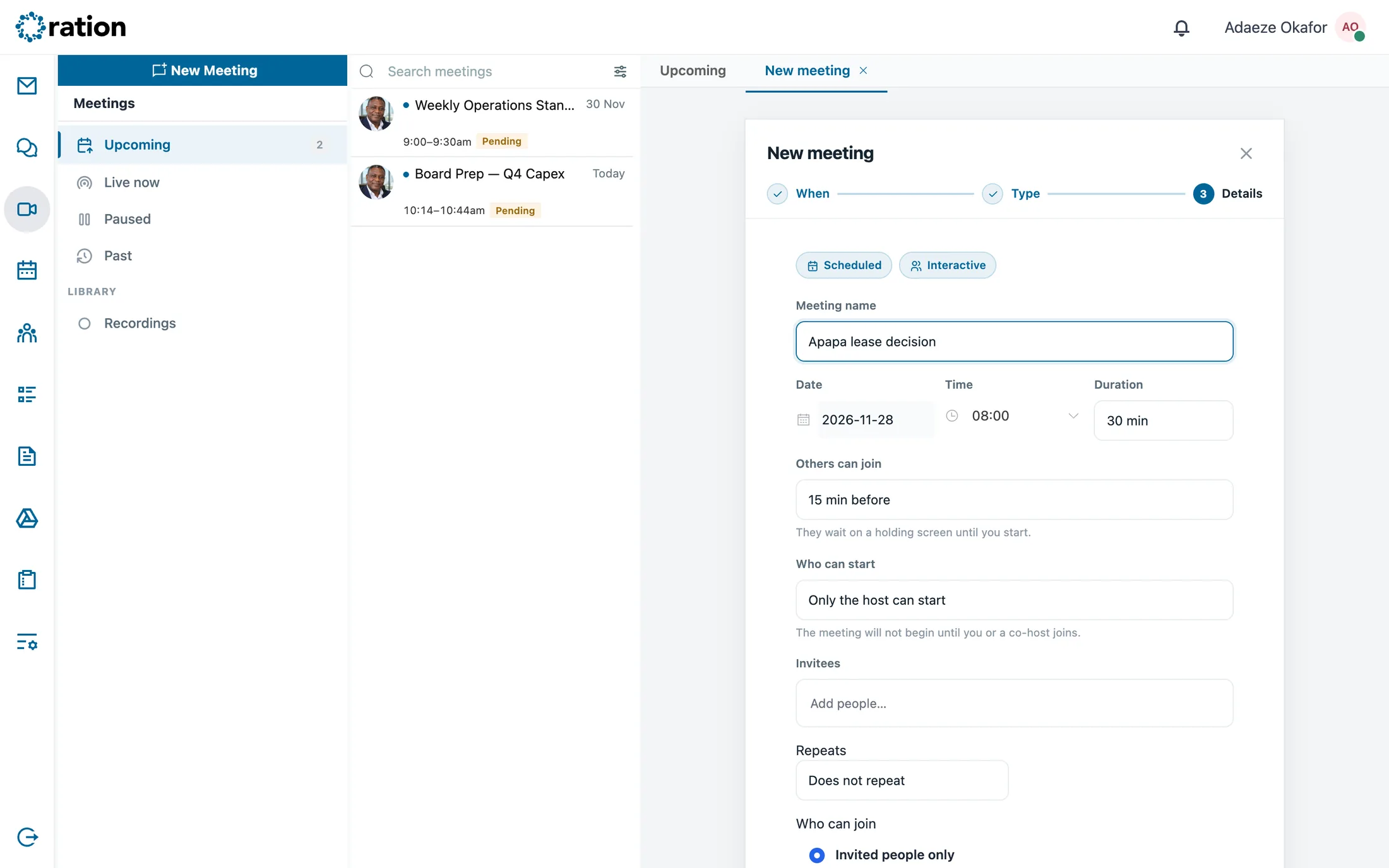
- Meeting name.
- Date, Time and Duration.
- Others can join: how early people can join. They wait on a holding screen until you start.
- Who can start: for example, Only the host can start, so the meeting begins when you or a co-host joins.
- Invitees: add the people who should get access.
- Repeats, if it is a regular meeting.
- Who can join: for example, Invited people only.
Scheduling creates the meeting and can notify invitees. Check the type, time, time zone, title and invitees before you select Schedule meeting.
05
In the meeting room
A meeting opens in its own tab. The people list or chat is on the left, video in the middle, and the controls along the bottom.
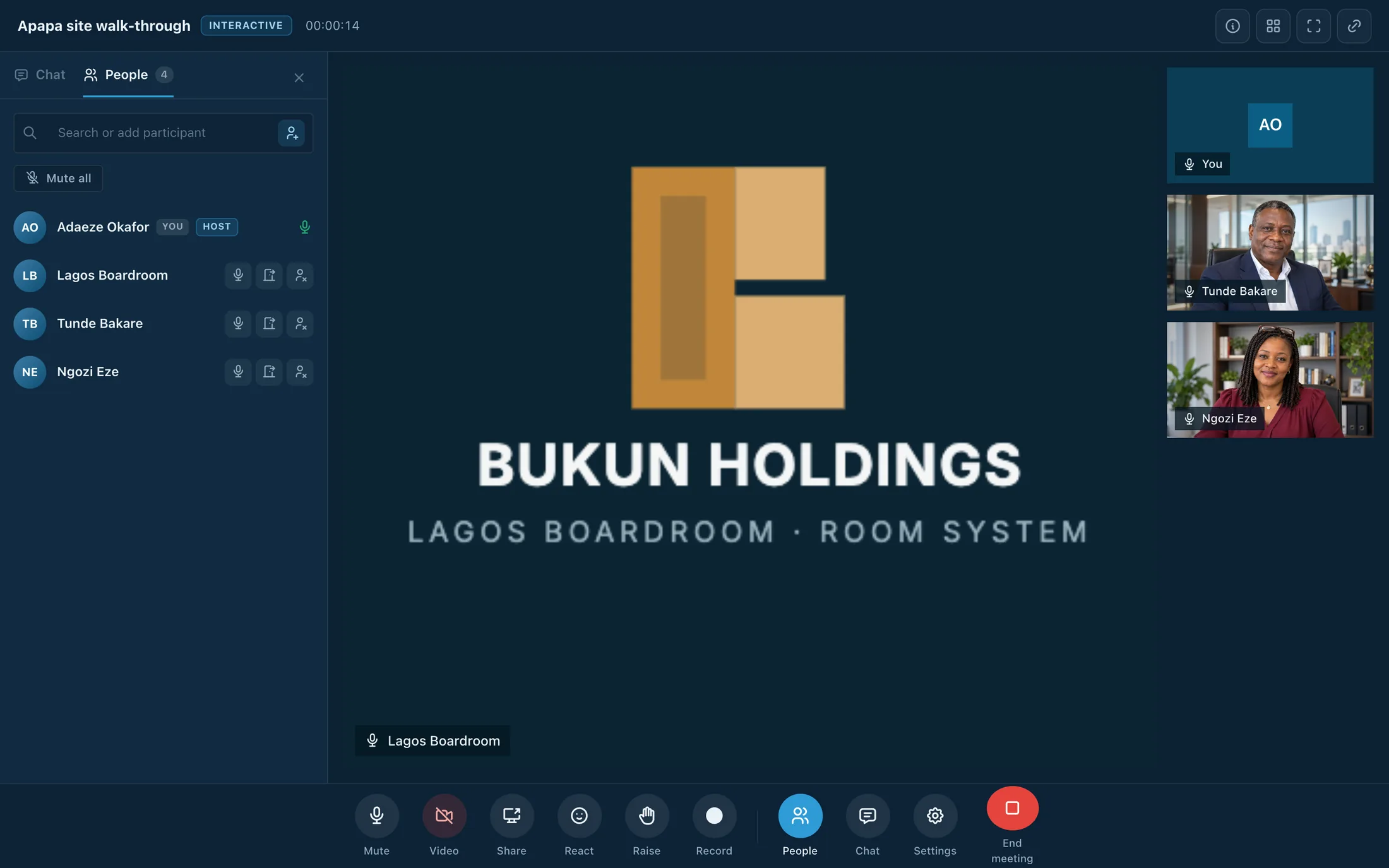
- People shows who is in the meeting, their role (such as Host) and whether their microphone is on. Use Search or add participant to invite someone. Mute all appears when your role allows it.
- Chat shows the meeting conversation. Type in Message everyone… and select send to post to everyone in the meeting.
- Mute changes to Unmute while your microphone is off. Check the label before you speak.
- Video turns your camera on or off. It shows red while your camera is off.
- Share presents your screen. In the browser prompt, choose the window, tab or screen carefully, and stop sharing from the meeting controls when you finish.
- React shows a quick reaction over the video for a moment.
- Raise shows you want to speak. Lower your hand once you’ve had your turn.
- Record changes to Stop while recording. Tell participants, or get their consent, before you record.
- Settings: check your microphone, camera and speaker before an important meeting.
- The icons at the top right show meeting information, change the layout, go full screen and copy the meeting link.
- End meeting ends the meeting for everyone. Use it only when you are finished.
06
Past meetings
The Past view shows each meeting’s name, the organiser’s initials, the date and a short result, such as Video call ended, Video call failed, how long it lasted, or an invitation. Use it to tell finished discussions apart from meetings that need a follow-up or another try.
07
Review a meeting
Select a meeting to open its details beside the list.
- Overview: the status, type and host, with the duration and the number of participants, chat messages and files.
- Recording, Chat, Files, Participants and Summary: what was recorded, said and shared in the meeting.
- Meeting details: the type, host, start and end times, and who can join.
- Meeting links: Copy the link for colleagues, who sign in to Ration to join, or Copy guest link for people outside your organisation.
Meetings hold up to 25 people for 60 minutes on Ration Do, and 50 people for 120 minutes on Ration Scale. Recording needs Do or Scale.
Last reviewed 27 November 2026.