01
Find your way around
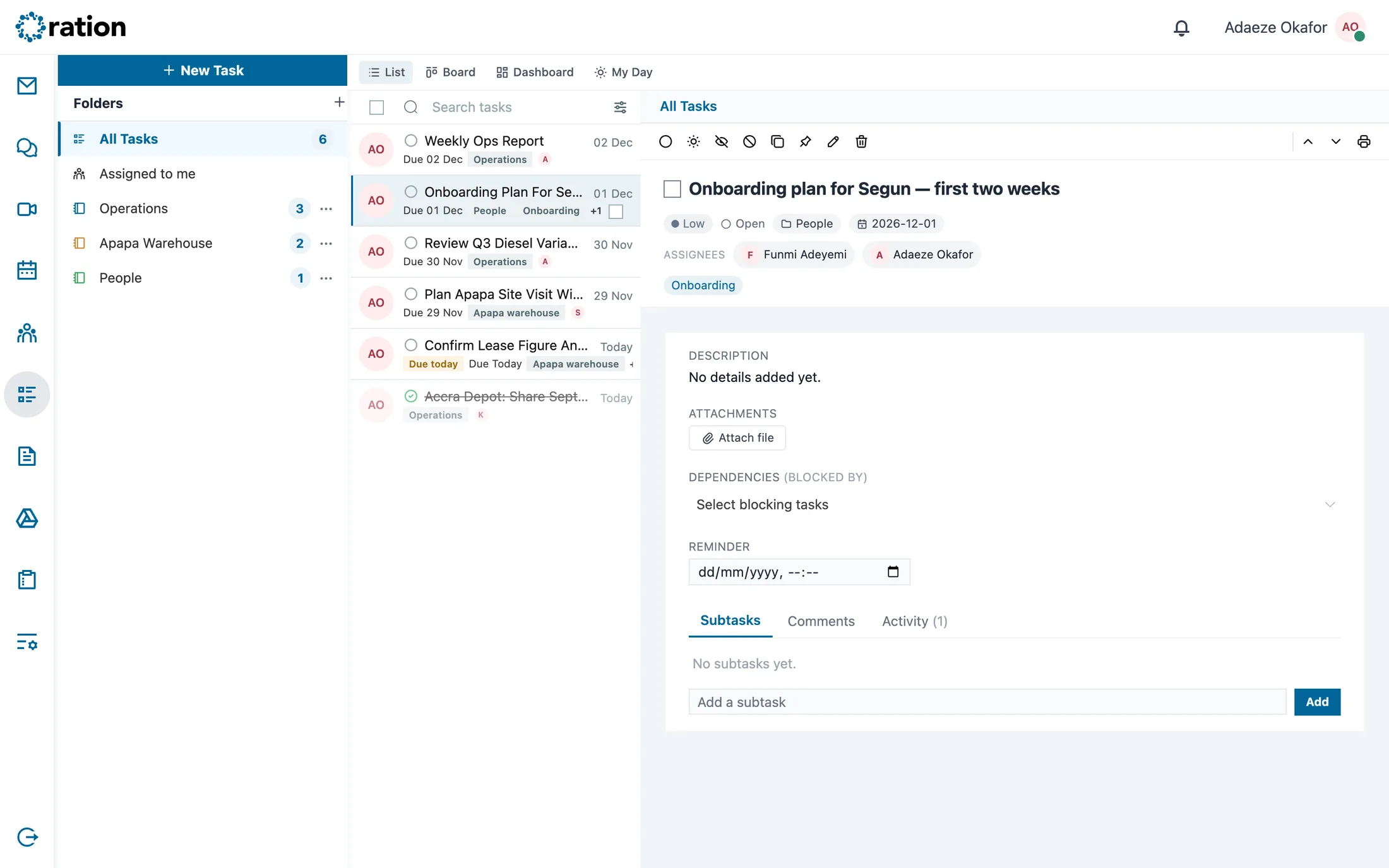
- The rail on the far left switches between Ration apps.
- The Folders sidebar holds All Tasks, Assigned to me and your own folders. Select one to show its tasks. Use the + beside Folders to add a folder.
- The task list shows each task’s title, owner initials, a preview of the description, status, due date, folder and subtask progress.
- The pane on the right shows the selected task.
02
Choose a view
Switch views from the bar at the top.
- <strong>List</strong>
- Review tasks as a detailed list.
- <strong>Board</strong>
- Organise work visually by status.
- <strong>Dashboard</strong>
- See task activity and progress at a glance.
- <strong>My Day</strong>
- Focus on today’s work.
03
Create a task
Select New Task. The draft opens in its own tab, so your task list stays where it is.
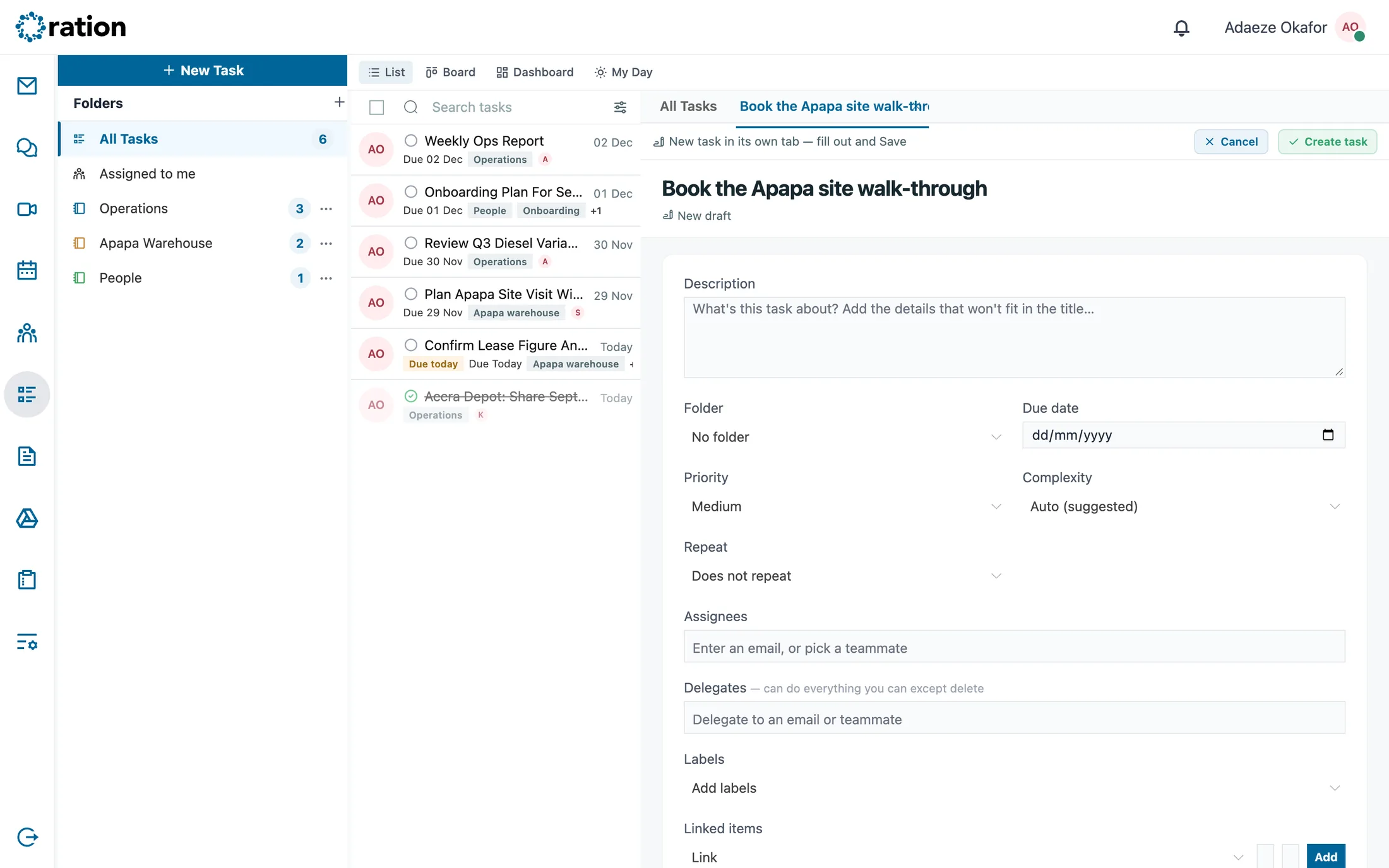
- Enter a clear title, and add context under Description.
- Choose a Folder, or leave it as No folder for now.
- Set a Due date if there is a deadline.
- Choose a Priority and a Complexity. Complexity starts as Auto (suggested).
- If the task recurs, set Repeat. Otherwise leave it as Does not repeat.
- Add Assignees: the people who will do the work.
- Add Delegates if someone should manage the task for you. Delegates can do everything you can except delete it.
- Add Labels and Linked items to connect the task with related work in Ration.
- Select Create task, or Cancel to discard the draft.
Assignees and delegates may see or be notified about the task. Check the owner, deadline, folder and people before you select Create task.
04
Break work into subtasks
Open a task and select Subtasks. A new task shows No subtasks yet.
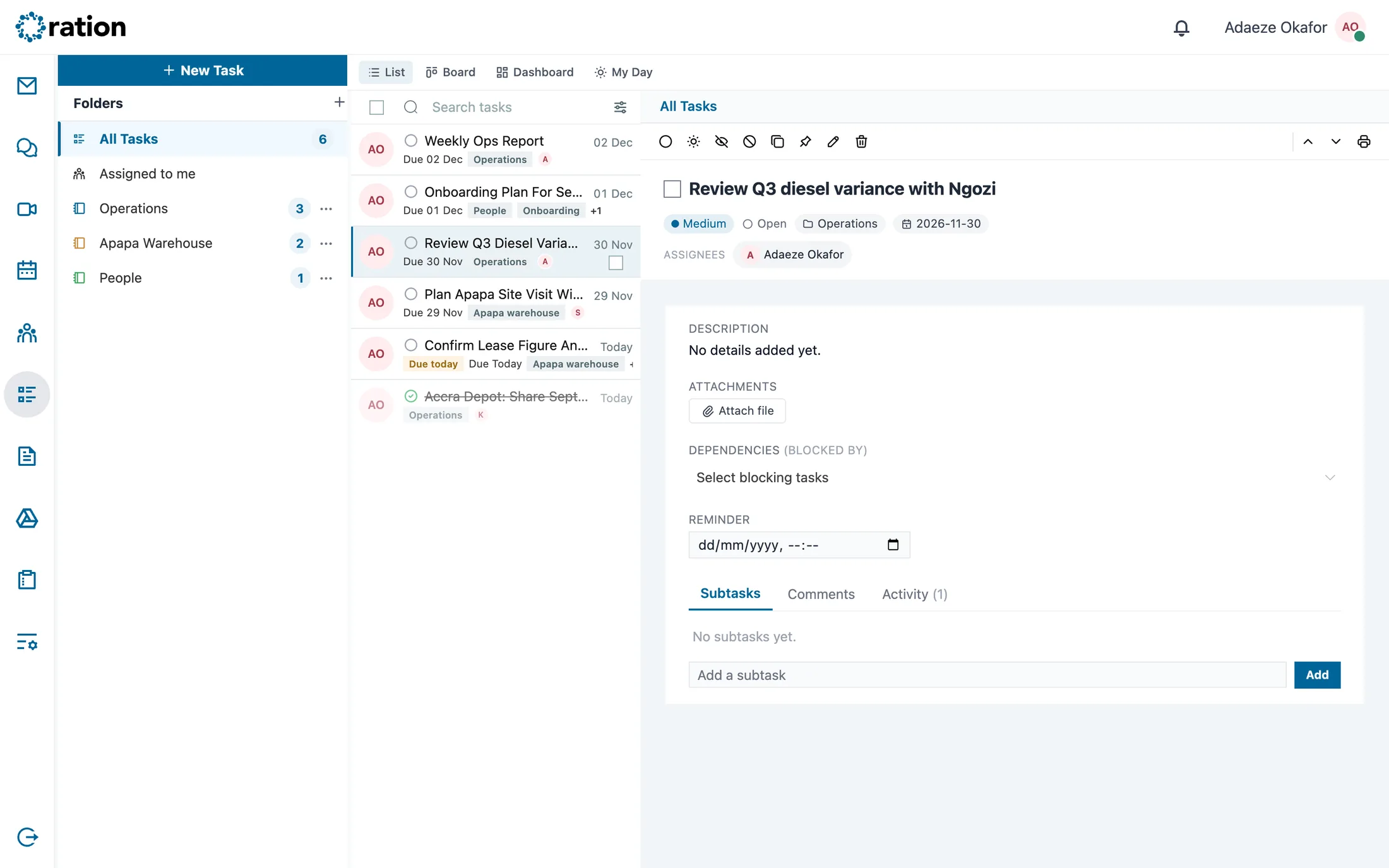
- Type a clear, actionable subtask in Add a subtask and select Add. A done/total counter appears on the task and in the task list.
- Tick the checkbox beside a subtask when it’s done.
- The Progress tracker is worked out from completed subtasks. With one subtask, ticking it moves the counter from 0/1 to 1/1 and progress from 0% to 100%.
- Owners and delegates can add, change and remove subtasks.
- Assignees can complete subtasks on work assigned to them, but don’t get the owner’s management controls.
Last reviewed 27 November 2026.