02
Create, rename or delete an address book
Choose an address book first, then view, create or move its contacts.
- Create: select the + beside Address Books, enter a short name such as
ClientsorProject team, and select Create. - Rename: hover over an address book you created, open its three-dots menu, select Rename, enter the new name and select Save.
- Delete: open the same menu and select Delete. To keep the contacts, first select Move contacts and choose another address book.
Deleting an address book can remove its contacts unless you move them first. Check the destination before you select Delete.
03
The built-in address books
These are protected or restricted. For full control over renaming, moving and deleting, use an address book you create yourself.
| Address book | What it is | What you can do |
|---|---|---|
| All Contacts | A combined view of the contacts available to you across address books. It is not a separate address book. | Search and open contacts. Pick a specific address book before creating or moving a contact. |
| My Contact | Your own Ration profile as a contact. | Keep your own details current. It can’t be moved into or out of another address book. |
| Default | Your main personal address book, created for you when needed. | Create and manage your contacts here. It can’t be deleted. |
| Global | Your organisation’s directory: active colleagues, plus contacts an administrator has made available to everyone. | Search, open, export, share and pin. These contacts are read-only, so you can’t create, move, edit or delete them. |
| Fetched (when present) | People you have written to, collected automatically for address autocomplete. | Find people you have emailed before. Don’t use it as a curated list or as a place to move contacts to. |
04
Create a contact
Select New Contact. It opens in its own New Contact tab.
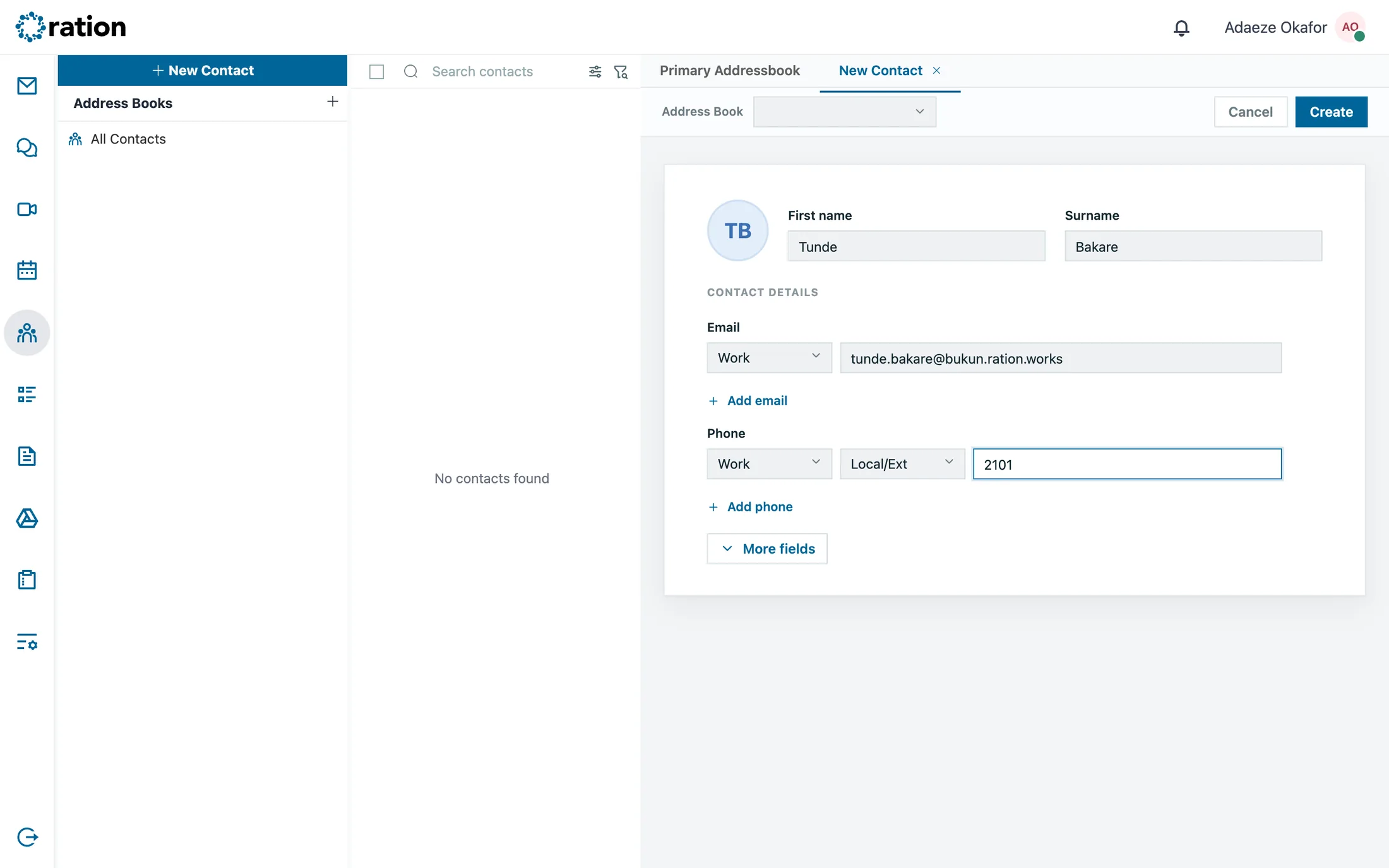
- Choose the Address Book to save it in.
- Enter the First name and Surname.
- Add an Email and choose its type: Home, Work or Other. Use Add email for another address.
- Add a Phone number. Choose its label and its format, such as Local/Ext, and use Add phone for another number.
- Select Create to save, or Cancel to discard it.
05
Add more details
Select More fields to expand the form.
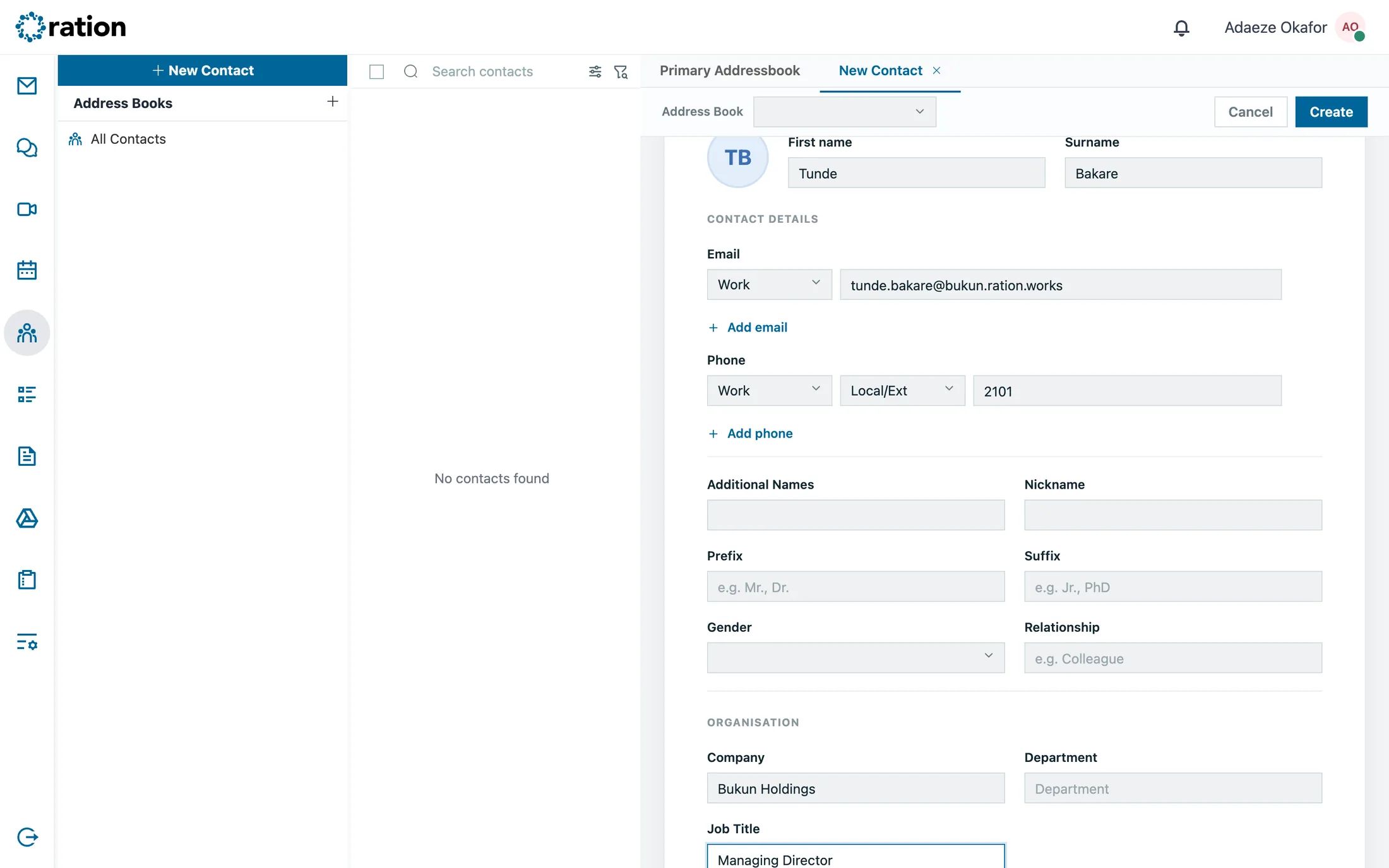
- Additional Names, Nickname, Prefix and Suffix.
- Gender and Relationship.
- Organisation details: Company, Department and Job Title.
- Use All fields for the full record, and Fewer fields to return to the short form.
06
View and share a contact
Select a contact in the list to open it. Its details are grouped under Profile, Contact, Details and Additional, with the display name, main email, organisation and address book at the top. Beside them, Scan to contact shows a QR code: scan it to open the contact on another device. Use Download to save a contact file, or Share to send it on.
07
Contact tools
The toolbar above an open contact has these tools:
- <strong>Edit</strong>
- Change names, contact methods and other fields. Select Save to keep your changes.
- <strong>Export vCard</strong>
- Download the contact as a
.vcffile. - <strong>Share</strong>
- Open your device’s share options, or copy the contact.
- <strong>Move</strong>
- Move the contact to another address book.
- <strong>Delete</strong>
- Delete the contact, after you confirm.
- <strong>Pin</strong>
- Keep the contact open in its own tab while you work elsewhere in Ration.
Directory and other read-only contacts keep export, share and pin, but not edit, move or delete.
08
Edit, move or delete a contact
Select the contact, then use the toolbar:
- Edit: update the fields and select Save, or Cancel to drop the changes.
- Move: choose the destination address book and confirm.
- Delete: confirm only when the contact should be removed for good.
To keep a copy outside Ration before you move or delete a contact, use Export vCard first.
09
Sync with other apps over CardDAV
Ration supports CardDAV, so contacts apps that speak it can find and sync your Ration address books. For Ration-hosted accounts, the discovery address is:
https://app.ration.works/.well-known/carddavIf your organisation runs Ration on its own servers or through a managed service provider, use the CardDAV address and sign-in details they give you. Use CardDAV for ongoing sync, and a contact’s Download when you only need to pass on one contact.
Last reviewed 27 November 2026.