02
Create and edit a note
Select New Note. An Untitled draft opens in its own tab, in the folder you are viewing, or in Unfiled if you are viewing All Notes.
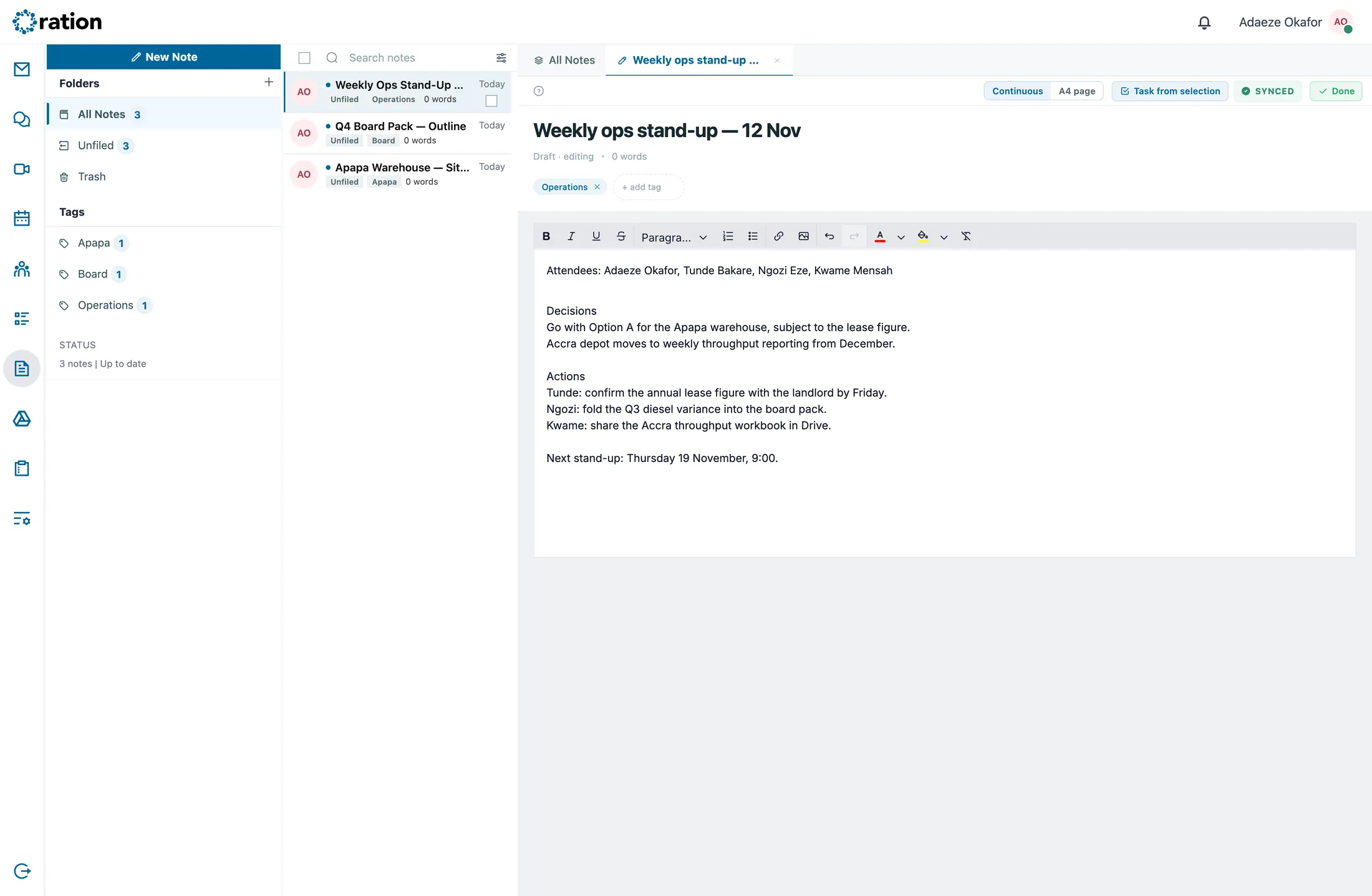
- Replace Untitled with a clear title.
- Write in the editor. Type @ to link a person, note, task or event. Type / for tasks, events and other linked items.
- Add tags in + add tag. Each tag becomes a filter in the sidebar.
- Choose Continuous for a flowing page, or A4 page for a paged layout.
- To turn part of the text into a task, highlight it and select Task from selection.
- Watch the status: SYNCED means your latest change is saved. SAVING means Ration is still saving, and OFFLINE means it can’t reach the service right now.
- Select Done to leave the editor and go back to reading the note.
03
Choose a layout
The layout changes only how the note is shown, not the note itself.
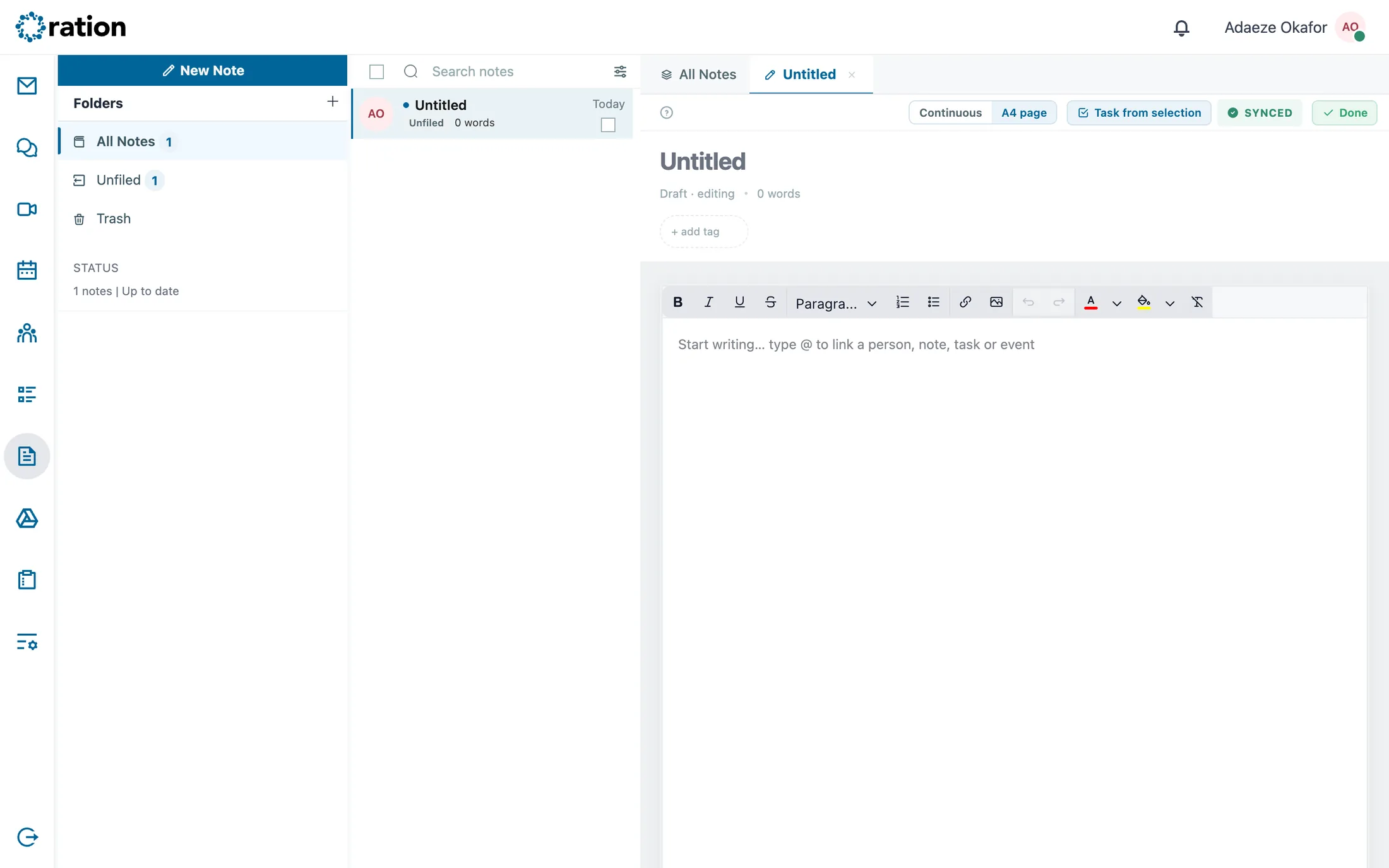
- Continuous shows the note as one scrolling page. It suits everyday working notes.
- A4 page splits the same content into print-style pages with page numbers. It suits reviewing a document page by page.
04
Read and manage a saved note
The note header shows the author, when it was last edited, word count, revision number and tags, so you can check you have the right version. The toolbar has these controls:
- <strong>Edit</strong>
- Open the note for editing in its own tab.
- <strong>Share</strong>
- Give other people access. The owner can share a note as view-only.
- <strong>Continuous / A4 page</strong>
- Change the layout without changing the note.
- <strong>Bookmark</strong>
- Mark your note so you can find it quickly.
- <strong>Move to folder</strong>
- Move the note to Unfiled or a folder.
- <strong>Links</strong>
- See the items this note refers to, and the notes and items that mention it.
- <strong>Export</strong>
- Download the note as Markdown (
.md), HTML (.html) or PDF. - <strong>Delete</strong>
- Move your note to Trash.
- <strong>Previous / Next note</strong>
- Step through the notes in the current list.
Use @ links and the Links panel to keep a note’s context with it, such as the meeting, task, event and people behind a decision. That makes it easier to find and understand later.
05
Organise folders
Use the control beside Folders to create a folder, then select it to work inside it. A custom folder’s actions let you rename or delete it. Before you delete a folder, move its notes to another folder or back to Unfiled.
06
Recover a deleted note
A deleted note goes to Trash first.
- Open Trash and select the note.
- Choose Restore to put it back in Notes.
Delete forever removes the note permanently. Use it only when you no longer need the note.
Last reviewed 27 November 2026.