01
Find your way around
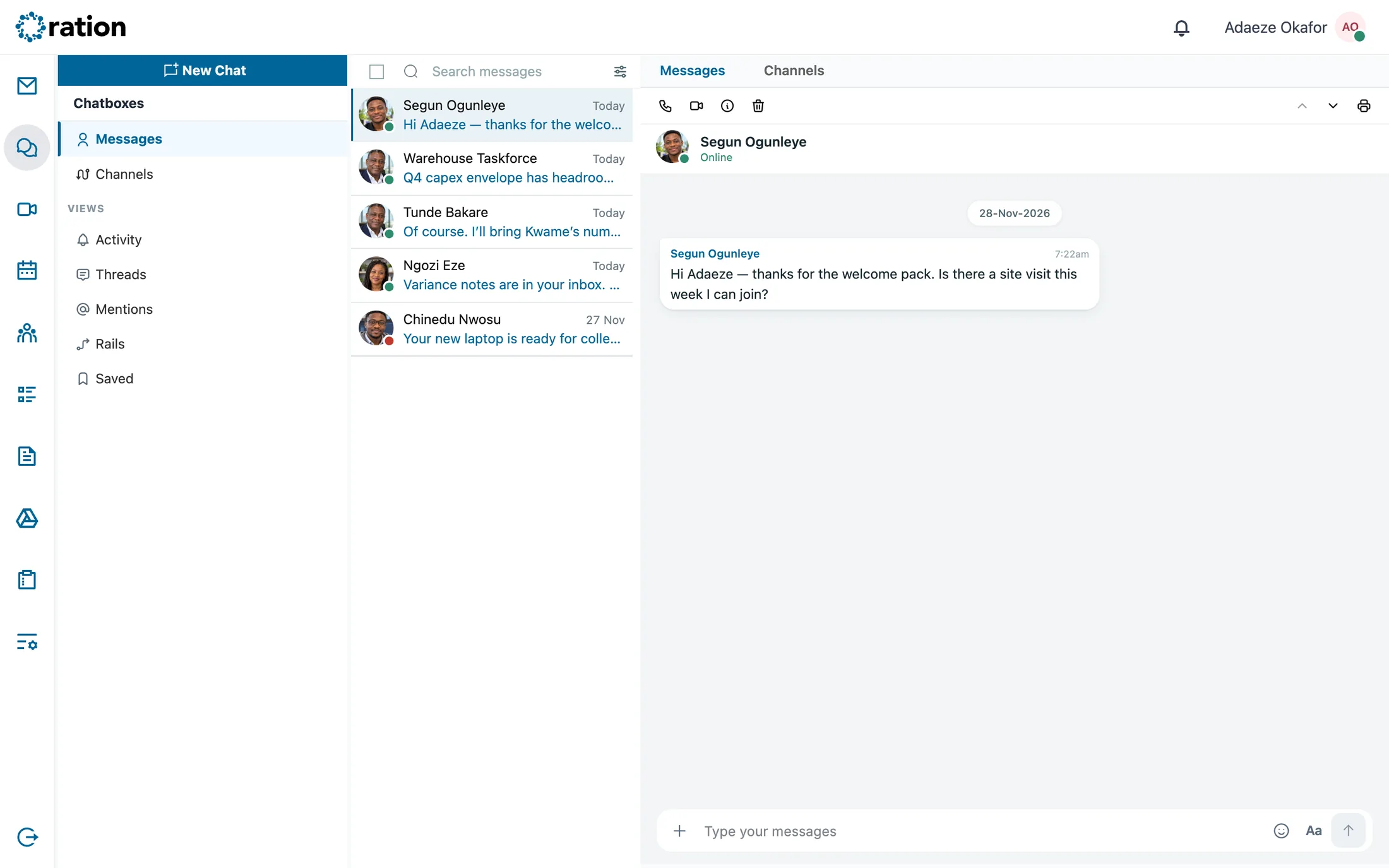
- Use Search messages to find a conversation, and Filter and sort to change the list.
- Tick the box beside a conversation to select it, then choose Mark selected read, Delete selected conversations or Cancel. Deleted conversations can’t be recovered.
- Chatboxes
- Switch between Messages and Channels.
- Views
- Activity, Threads, Mentions, Rails and Saved.
- Conversation list
- Search, filter, open, or select conversations to act on several at once.
- Conversation pane
- Read and send messages, make calls, manage members and act on messages.
02
Start a direct or group chat
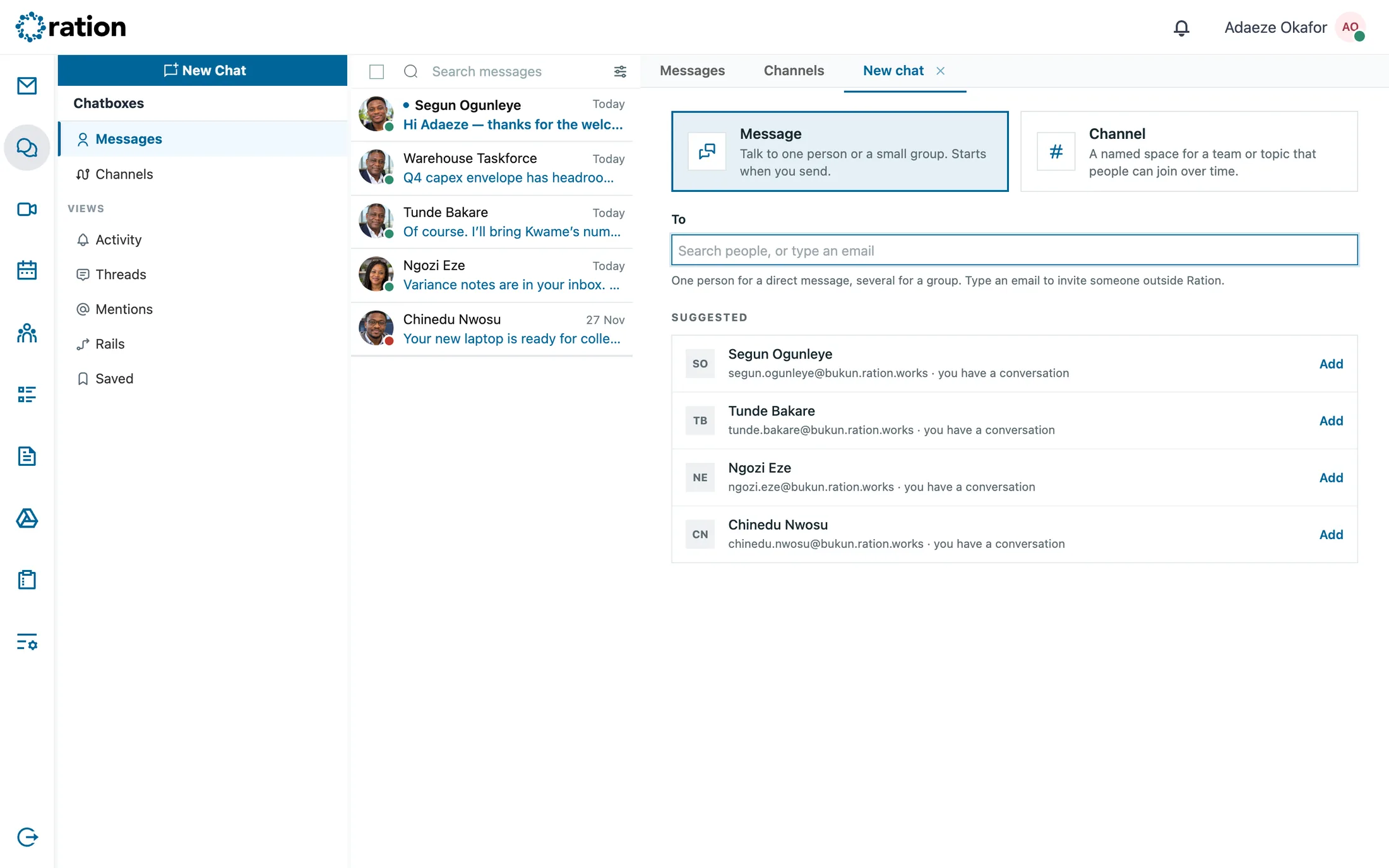
- Select New Chat. A New chat tab opens.
- Choose Message to talk to one person or a small group. Choose Channel for a named space for a team or topic that people can join over time.
- In To, search for a colleague, or type a full email address to invite someone outside Ration. You can also Add someone from the suggestions.
- Add one person for a direct message, or several for a group. With two or more people, you can give the group a name.
- Write your message and send it. The conversation starts when you send.
Ration marks guests from outside your organisation as external and shows access controls for them. Check the guest list, the expiry and what they are allowed to do before you start: guests can see everything shared in that chat.
03
Direct and group conversations
Select a conversation to open it. The header shows the person or group name and whether they are online. In a group it also shows how many members there are and how many are online.
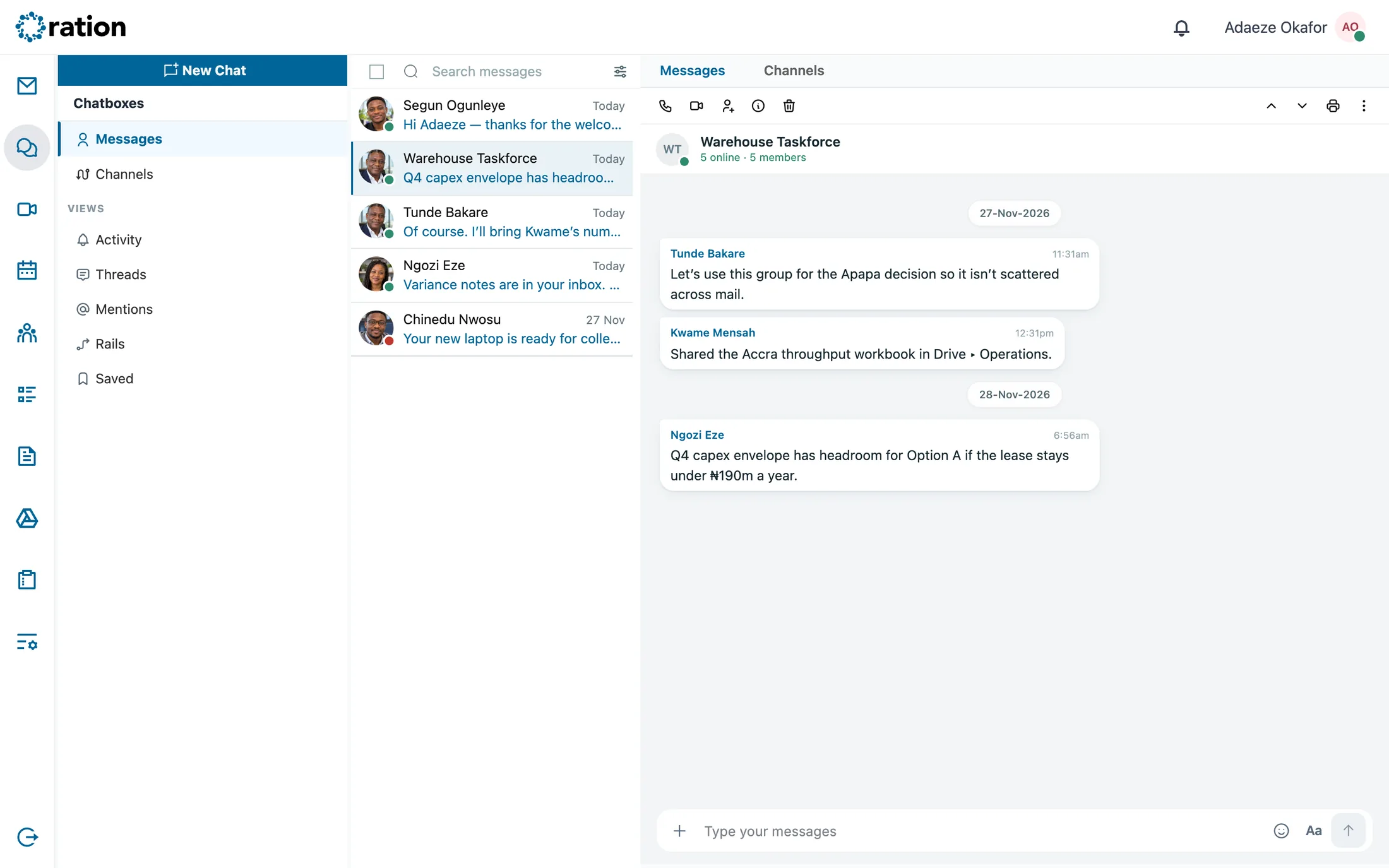
- Voice call and Video call start a call with everyone in the conversation.
- Add members, in groups.
- Conversation details shows the members and information about the chat. It changes to Back to messages while open.
- Delete chat removes the conversation after you confirm.
- Previous conversation and Next conversation move through the list without going back to it.
- Print conversation.
- More: in groups, Edit members. In a meeting’s conversation, you can also invite participants and Copy Meeting Link.
04
Write and share
Type in the message box at the bottom of the conversation. Use the emoji button for emoji, and Aa to open the formatting toolbar with Bold, Italic, Underline and text styles. Select + to attach a file. Check the text, who will see it and any attachments before you send.
05
Act on a message
Select the three dots beside a message to open its actions.
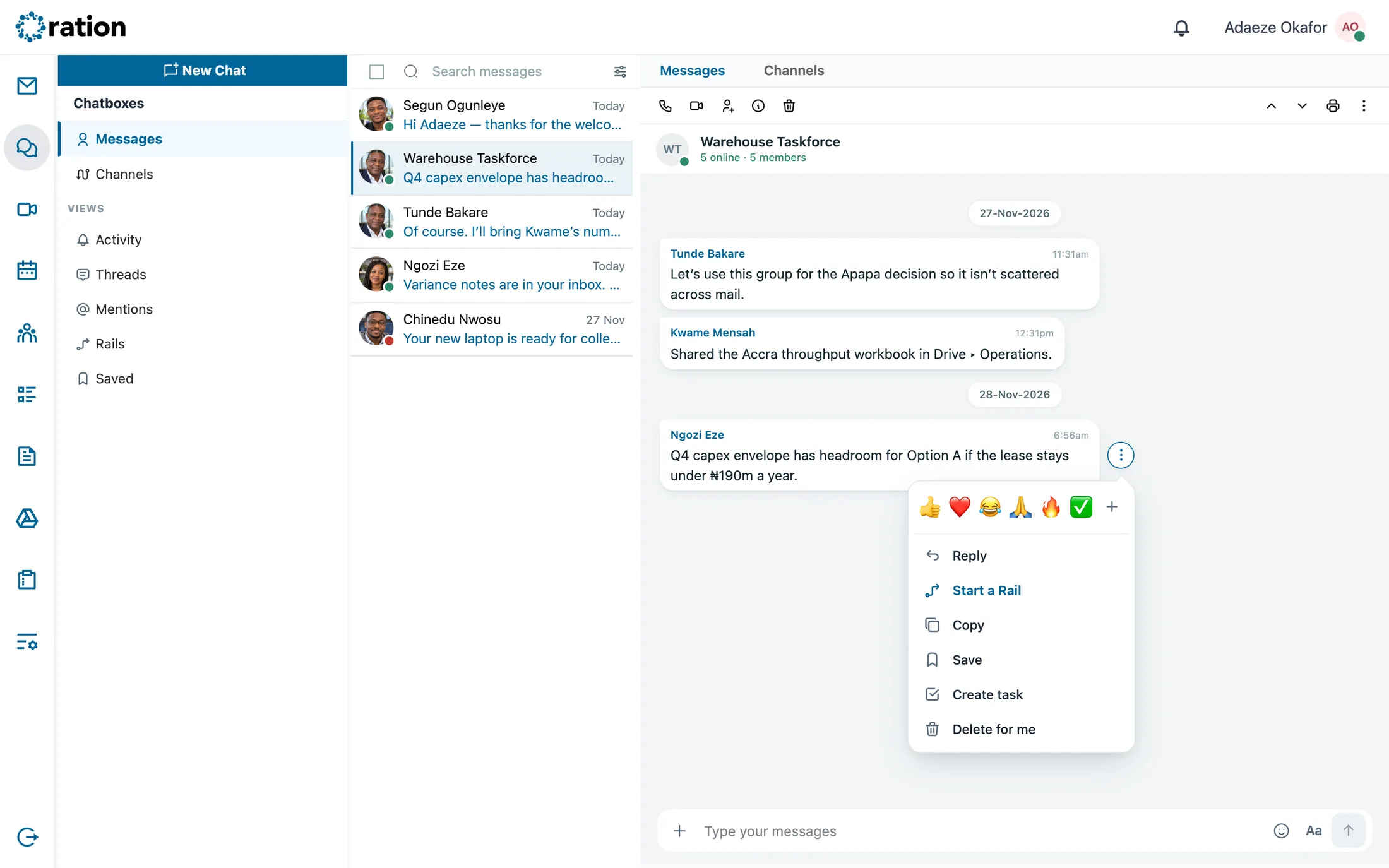
- Add a quick reaction, or select + for more emoji.
- Reply puts the original message above the message box for context.
- Start a Rail takes the message into a focused side discussion. See Rails.
- Copy the message.
- Save it to come back to later.
- Create task turns it into a task.
- Delete for me removes it from your own view only.
- For messages you sent, Delete for everyone removes it for all participants. Read the confirmation first.
06
Rails
A rail is a side discussion that starts from one message, so it doesn’t crowd the main conversation. Select Rails under Views to see yours, and narrow the list with Recent, Unread or Hot.
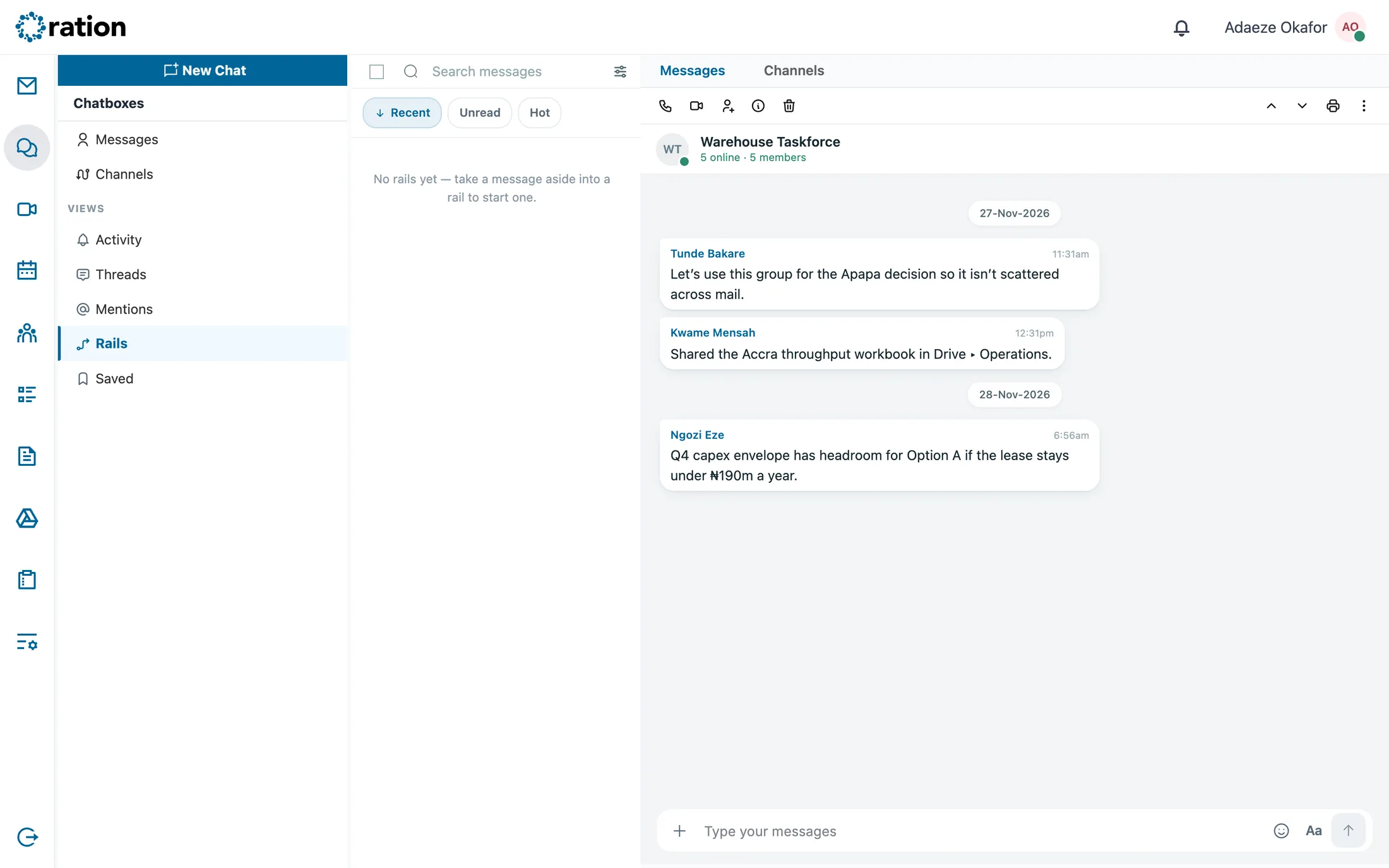
Each rail shows the message it came from, its participants, how many replies it has and when it was last active. Open a rail to carry on that discussion without losing your place in the main conversation.
07
Voice and video calls
Select the phone icon for a voice call or the camera icon for a video call. Starting a call rings the person or everyone in the group, so check you are in the right conversation first.
On Ration Start you can join calls and meetings. Starting them needs Ration Do or Scale.
Last reviewed 27 November 2026.