01
Folders and the message list
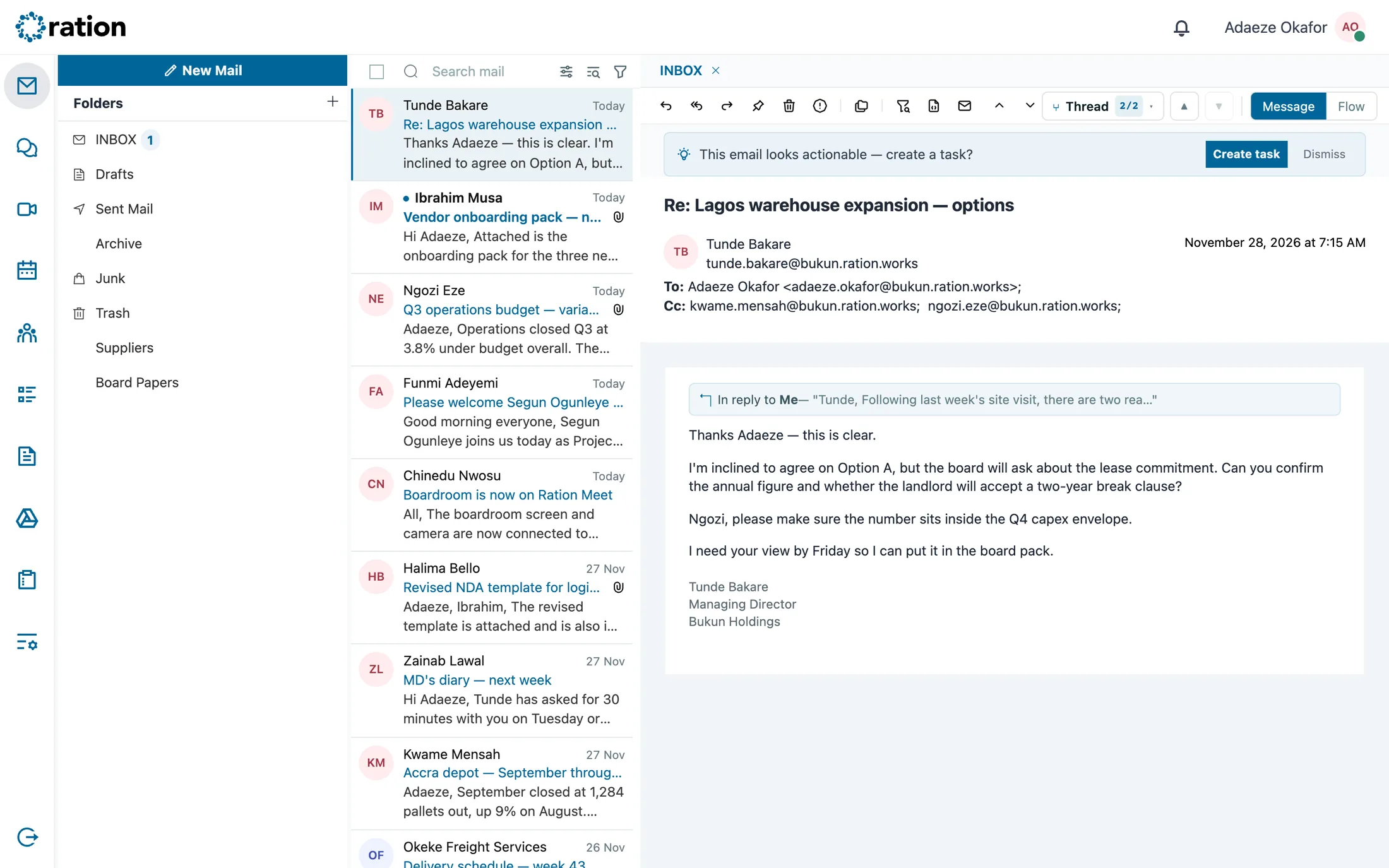
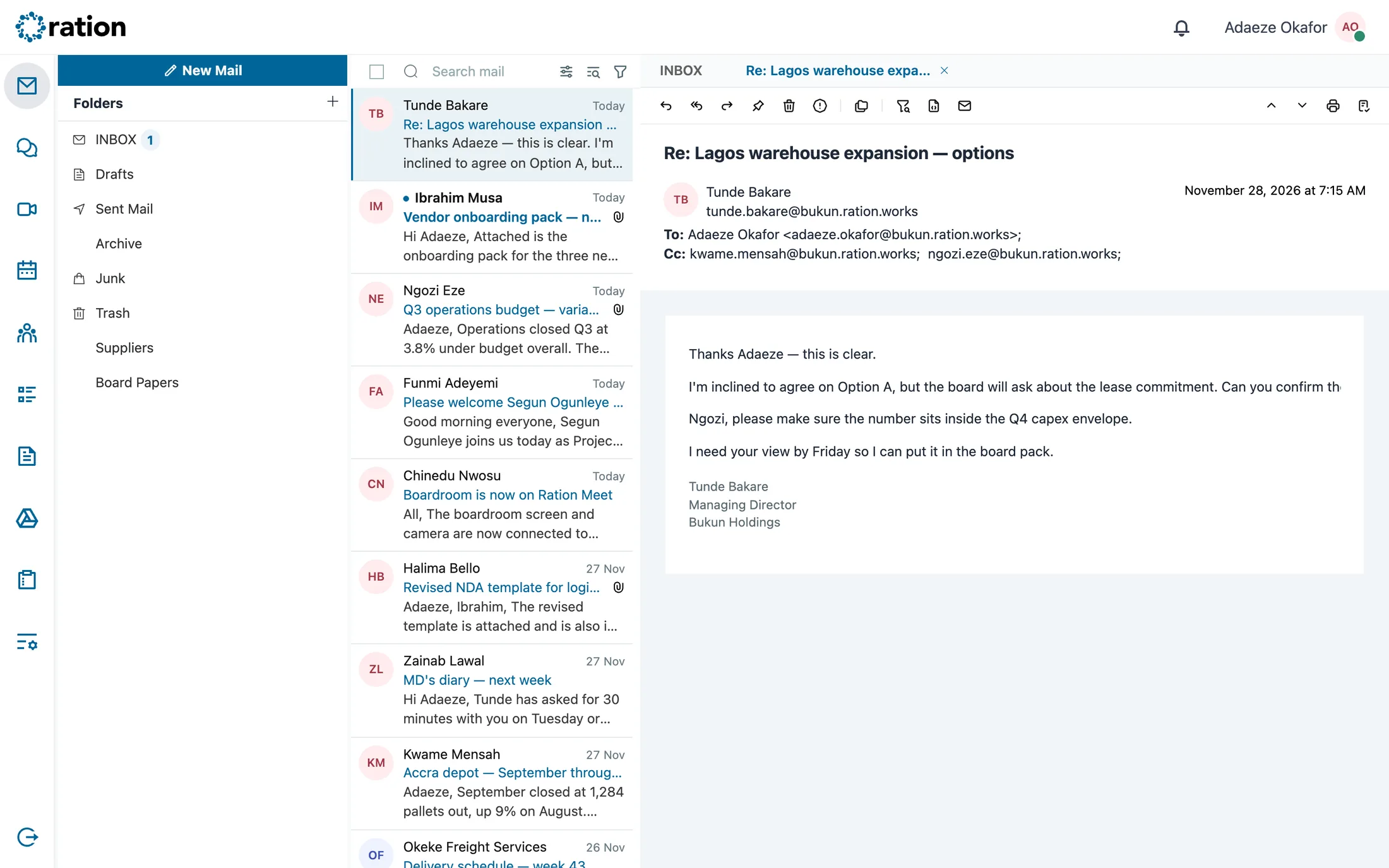
- New Mail opens a new compose tab. Nothing is sent until you select Send.
- Select INBOX, Drafts, Sent Mail, Junk, Trash or one of your own folders to choose what the list shows. Add a folder with the + next to Folders.
- Use Search mail, Filter and sort, Advanced search or Filter builder to narrow the current folder.
- Select all only selects the messages visible in the list.
- Use Move to to file mail. Delete moves mail to Trash. Empty trash clears the whole of Trash and is only available there.
02
Reading a message
The toolbar above an open message has Reply, Reply All, Forward, Pin Message, Delete, Junk/Not spam, Move to, Filter message, Message Source, Mark as unread/read, Previous, Next, Print, Create task and Message details.
- Use Reply to answer the sender only.
- Use Reply All only after checking everyone in To and Cc.
- Use Forward to send the message to different people.
When a message looks like something to act on, Ration offers to turn it into a task. Select Create task, or Dismiss.
03
Reply, Reply All and Forward
Each response opens in its own tab, so the original message stays open beside it. If you choose another response for the same message, Ration reuses that tab instead of starting a second draft.
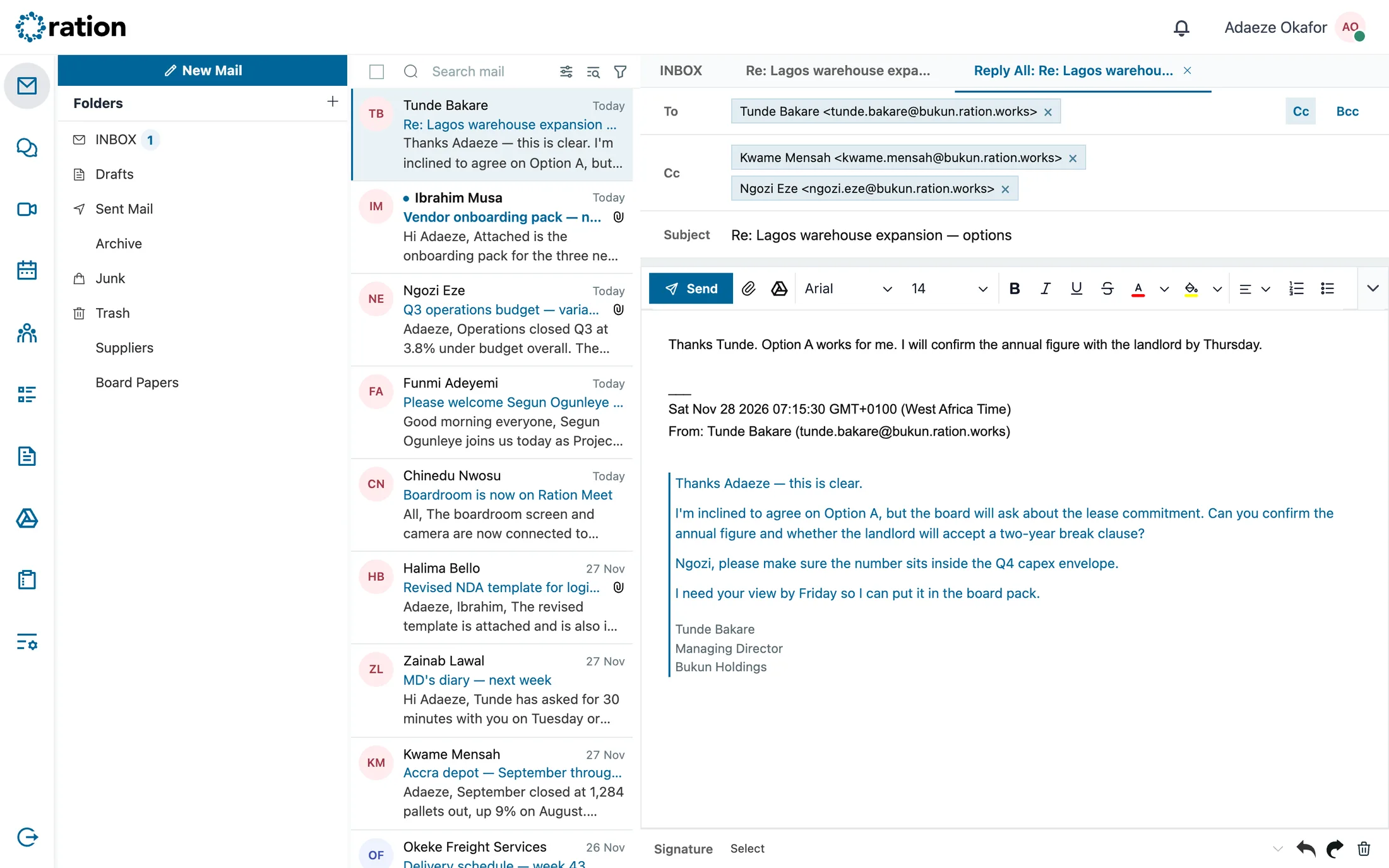
- Reply
- The sender, a
Re:subject and the quoted message. - Reply All
- The sender plus everyone else in the original To and Cc, except you.
- Forward
- An empty recipient list, a
Fwd:subject, the quoted message and its attachments.
04
Change the response type while writing
If you haven’t typed anything yet, choosing another response type rebuilds the tab straight away. Once you have made changes, Ration protects your draft and asks what to do:
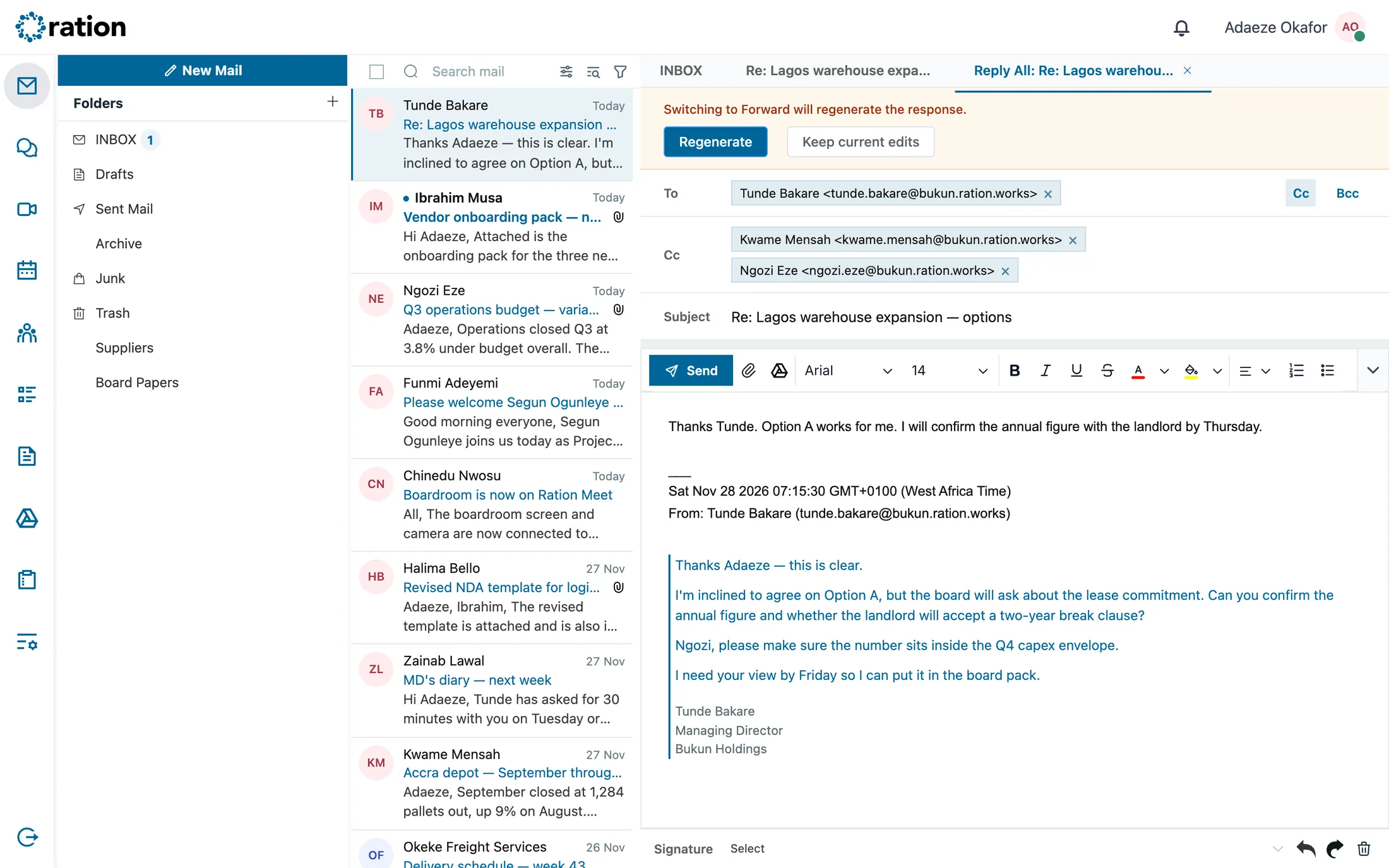
- Regenerate rebuilds the response for the new type and replaces your edits.
- Keep current edits cancels the change and keeps your draft.
05
Follow a thread
Ration shows a conversation as a tree of replies, not just a list in date order. Thread controls appear when a conversation has more than one message.
- Select In reply to above the message to open the message it answers.
- Select a Replies pill to open a direct reply. More than one reply means the conversation has forked.
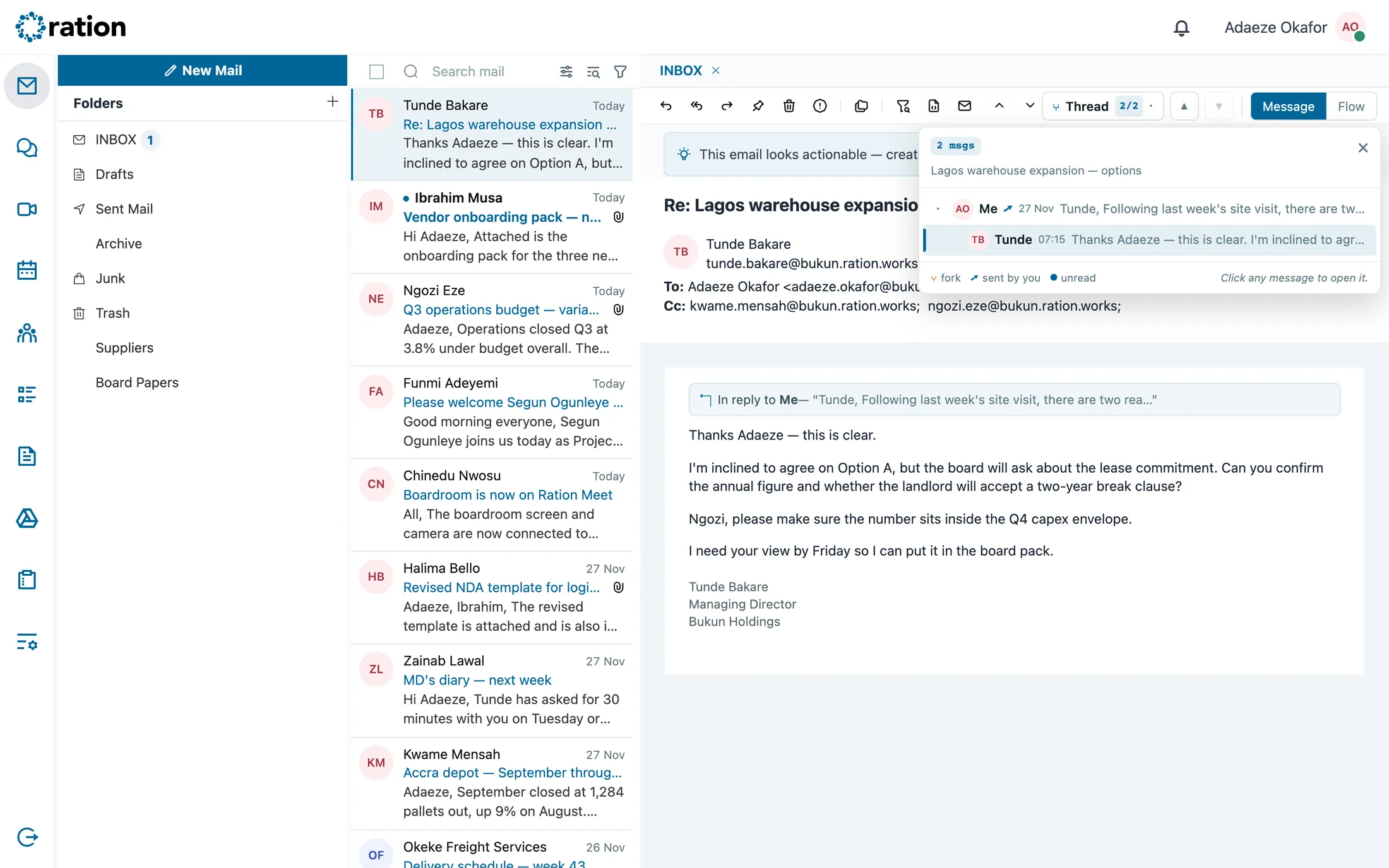
- Select Thread to see the whole tree, including forks, unread messages and messages you sent. Click any message to open it.
- Use Previous in thread and Next in thread, or
jandkwhen you aren’t typing, to step through the thread. - Switch between Message, to read one email, and Flow, to follow the current path as cards. Each card has Open as message and Reply here.
06
Tabs and pinned messages
- Folder
- Opens when you select a folder. The normal list and reader.
- New Mail
- Opens when you select New Mail. A separate message to write.
- Reply or Forward
- Opens when you choose a response. Write without losing the original.
- Pinned
- Opens when you select Pin Message. Keeps a message open for reference.
To pin a message, open it and select Pin Message. Ration opens a tab labelled with its subject. Pins are personal and come back after you refresh. Pinning doesn’t move, share or keep a copy of the message. Close the tab when you no longer need it.
07
Write a new message
- Select New Mail.
- Add recipients in To. Use Cc for visible copies, and Bcc only where it is appropriate.
- Add a clear subject and write your message.
- Attach files, and choose a signature under Signature.
- Check the recipients, subject, content and attachments, then select Send.
The editor has font and size, bold, italic, underline, strikethrough, text and highlight colour, alignment, lists and indentation. On a narrow screen, the arrow at the end of the toolbar shows the controls that don’t fit.
Last reviewed 27 November 2026.